
Integrate MS AppCenter
Microsoft AppCenter (opens in a new tab) is a SaaS solution that helps you build, test, manage, and deploy Android and iOS mobile apps.
If you use AppCenter, you can integrate it with webmate to manage the mobile apps available on your webmate devices. This document describes how you use apps managed at AppCenter in webmate.
Integrating AppCenter with webmate
To use Microsoft AppCenter with webmate, you need an MS AppCenter user account with read-access to the app you want to use in webmate. Create a new user API token in your AppCenter settings. The token is only visible once, so either copy it directly to webmate or store it at some safe place.


In webmate, you configure the AppCenter integration in the App management view of the device area. Here you can create “Packages,” which is what mobile apps are called internally in webmate.
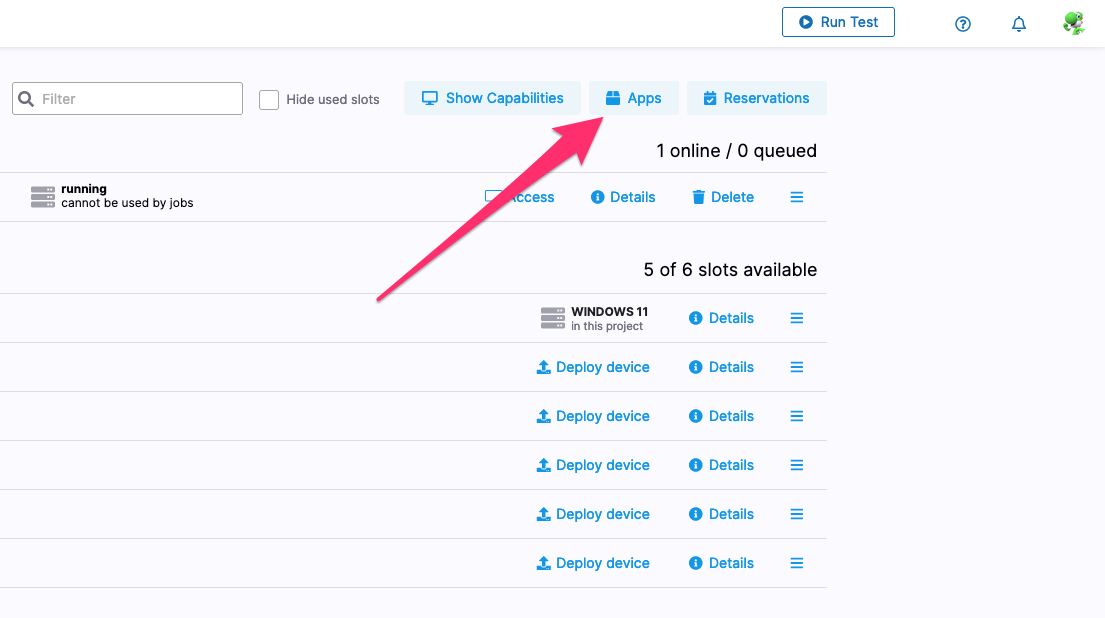
When you create a new package for a mobile app, you may either directly upload the app as a binary file or connect with a “Package Repository,” e.g., Microsoft AppCenter.

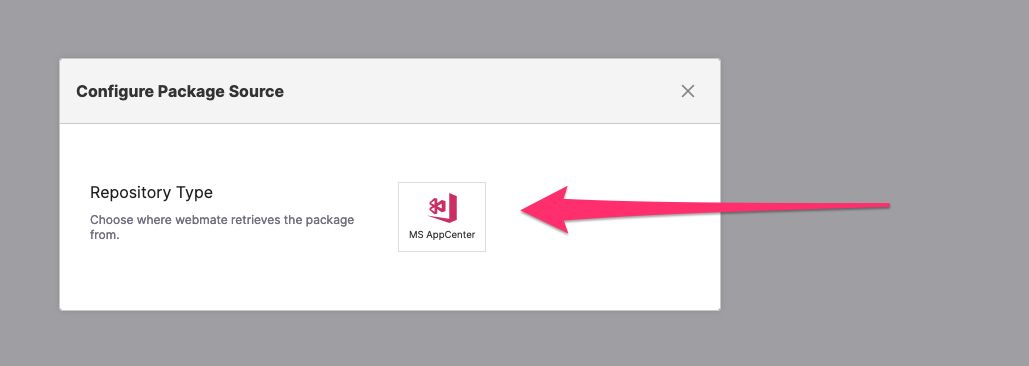
Configuring the AppCenter Integration
To configure the integration, you must provide the following information to webmate:
- the AppCenter API token mentioned above,
- the “owner” of the App, which is the name of your organization in AppCenter,
- the name of the mobile app in AppCenter.

The last thing to configure is whether you want to have the latest release or the latest build of your app synchronized with webmate. In the latter case, you can also specify the branch name where webmate looks up the build.
You may check if your configuration is valid by clicking on “Test.” If you are confident that everything is ok, you save the configuration by selecting “Connect Repository.” Now, webmate will synchronize your app from MS AppCenter.
The list of packages in the “Apps & Packages” overview includes packages that users have uploaded manually and packages downloaded from AppCenter. AppCenter packages also contain a “Package Source” section, which shows information about the configuration, when the package was updated last, and what version of the package is currently available in webmate. In this section, you can also initiate an update of the package, which checks if a new version of the app is available at AppCenter and downloads it if it is.

Download Specific Releases from AppCenter
By default, webmate downloads the latest build or release of a mobile app from AppCenter. Alternatively, you may pinpoint the release to be downloaded by selecting “Choose specific release” from the package source dropdown.
Enable Automatic App Synchronization
After webmate has downloaded an app from AppCenter, it is stored within your project and will not be modified until you trigger an update. If you want to have always the latest version of an app available, you may create a webhook in webmate and configure it in MS AppCenter. With that, webmate will be notified whenever an update becomes available.
