
Get Started with Appium App Testing
In this tutorial, you will learn how to write your first Appium test with webmate.
The article will use an Android device and app as an example, working with iOS only requires very minor changes. You will first learn how to generate an API key, since you will need one to run tests with webmate. Then you will learn how to start and run an Appium session.
Generating an API key
We start this article in our General Profile Information view. To get there please look into this article .
Click API key in the left sidebar.

Provide a name for the new API Key to identify it later. Then click Create New Key.

The new API Key will be shown to you.

Upload the App
There are two options when uploading an app to webmate to install it on your devices. You can either manually upload and manage existing apps via the webmate web UI or upload the app via the API.
If the app you want to test is already in webmate, you can skip this step.
Upload an App via API
You need an authenticated webmateSession to call this function, see this article
on how to set up and authenticate with the SDK.
You need to fetch the APK/.ipa file to install as a byte array. The files have to be located under resources/packagename/.
| |
You need to fetch the path for the APK/.ipa file to install.
| |
Now you can upload the app, you can specify a name, and whether it is an Android package (APK), or an iOS package (.ipa file).
| |
| |
You can now see and modify the app via the web app as well.
Upload an App via the webmate Web App
Navigate to the devices view of your project and click on the Apps button in the upper right area.
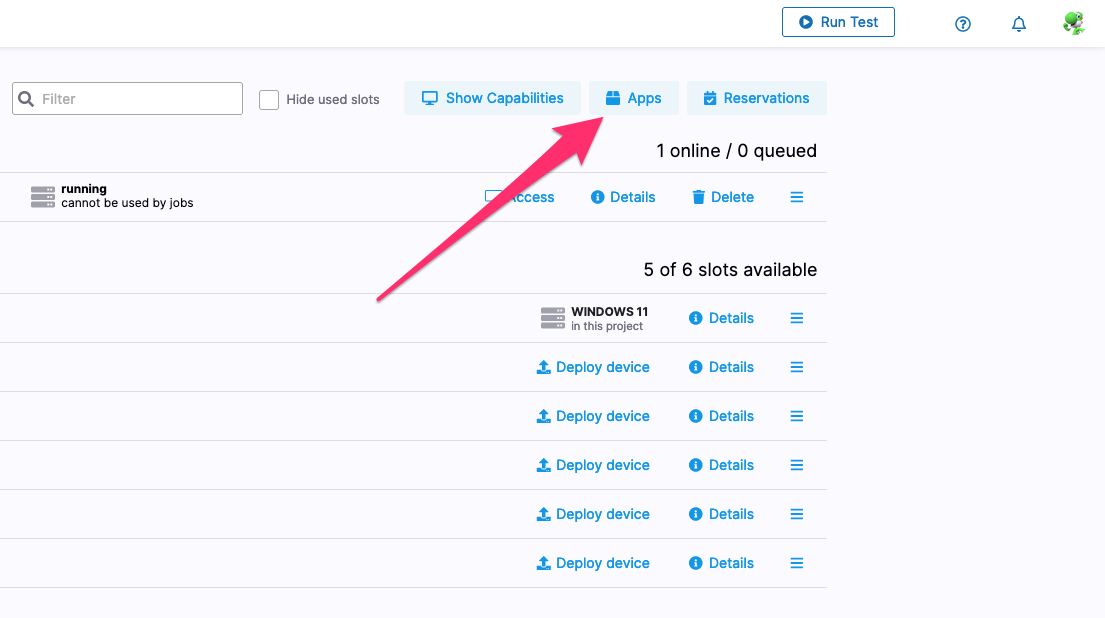
If this is the first time uploading an app to this webmate project, you will only see a button to upload your first app. Go ahead and click on Add new App.

If the project already has Apps uploaded to it, you will now see an overview of all available apps in the project. Here you can click on Add Package.

Now choose if you want to upload the file from your computer or to connect to an MS AppCenter Repository.
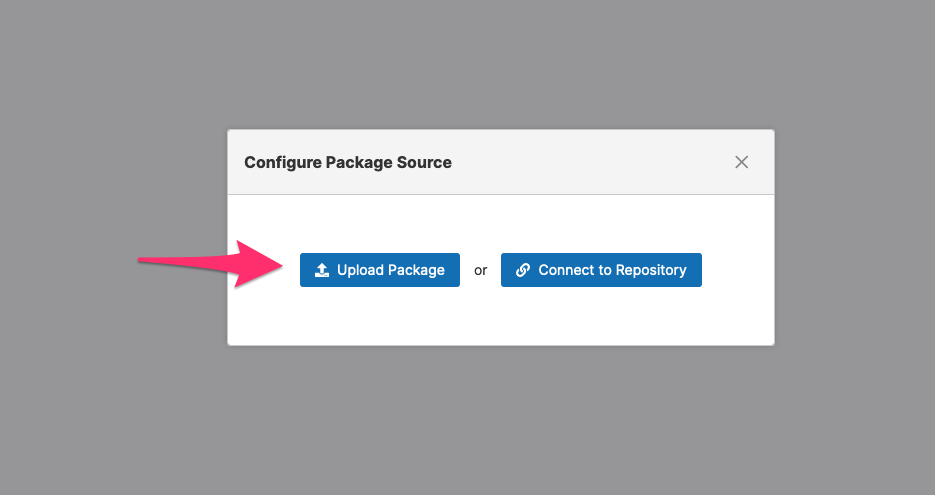
After you have uploaded the app, you can see it in the list of installed packages on the left. webmate will automatically generate a so called instrumented version of your app package. This modified package allows webmate to simulate certain functions like GPS, camera, biometrics, and more. You can delete the package (1), upload a new version (2) or download the original and the instrumented version (3).

Set up the Connection to webmate
Integrating your existing Appium tests with the webmate infrastructure is easy. You only need to add some webmate-specific capabilities. For the migration path, see Use Existing Tests with webmate .
The complete example at the end of the page includes the full tutorial code.
First, set the login credentials for webmate, the project ID where the tests should run, and the Selenium URL for webmate.
Set up the Device
Pick an Android device from the devices available to you in webmate.
Specify the device you want to request and add the matching device capabilities.
| |
platformName is a string of the following format: platformType_platformVersion.
platformType is the operating system, so for Appium test, it can be either Android or iOS.
platformVersion is the version of the operating, e.g. 11 for Android 11 or 14.2 for iOS 14.2.
For Android apps, specify the application ID or package name (appPackage) and the activity (appActivity) you want to test.
For iOS apps, specify the bundle ID (bundleId) instead.
browserName will always be Appium.
browserVersion is the Appium version to be used with the device.
If a device is already deployed, click on Details and refer to machine.browsers to see the Appium version available on this device.

For structuring your tests, you can add webmate-specific capabilities, such as tags or names. These are useful for structuring your tests and to be able to quickly navigate your tests in the TestLab.
For tags and test names, see Organize webmate Tests .
Test the app
If you run the test with this basic set of capabilities, you should see the app start on the device. Now you can find elements in the currently active view and interact with them.
| |
In iOS, you can select elements based on accessibility IDs
| |
All Code
Here you can find the complete setup code for this tutorial in one block to copy and paste:
| |
Next steps
This is only the start of what is possible when working with webmate and Appium.
The webmate SDK simplifies workflows and gives Appium tests access to more advanced features. For SDK workflows, see Using the SDK .
There are also features that can be used without the SDK, simply by working with capabilities, such as tagging and naming your test runs .