
Upload a Mobile App to webmate
There are two basic ways to upload a mobile app to webmate to install it on your devices.
You can either manually upload and manage existing apps via the webmate web app or upload the app via API calls in your code. This article explains both upload methods.
Upload an App via API
You need an authenticated webmateSession to call this function, see this article
on how to set up and authenticate with the SDK.
You need to fetch the APK/.ipa file to install as a byte array. The files have to be located under resources/packagename/.
| |
You need to fetch the path for the APK/.ipa file to install.
| |
Now you can upload the app, you can specify a name, and whether it is an Android package (APK), or an iOS package (.ipa file).
| |
| |
You can now see and modify the app via the web app as well.
Upload an App via the webmate Web App
Navigate to the devices view of your project and click on the Apps button in the upper right area.
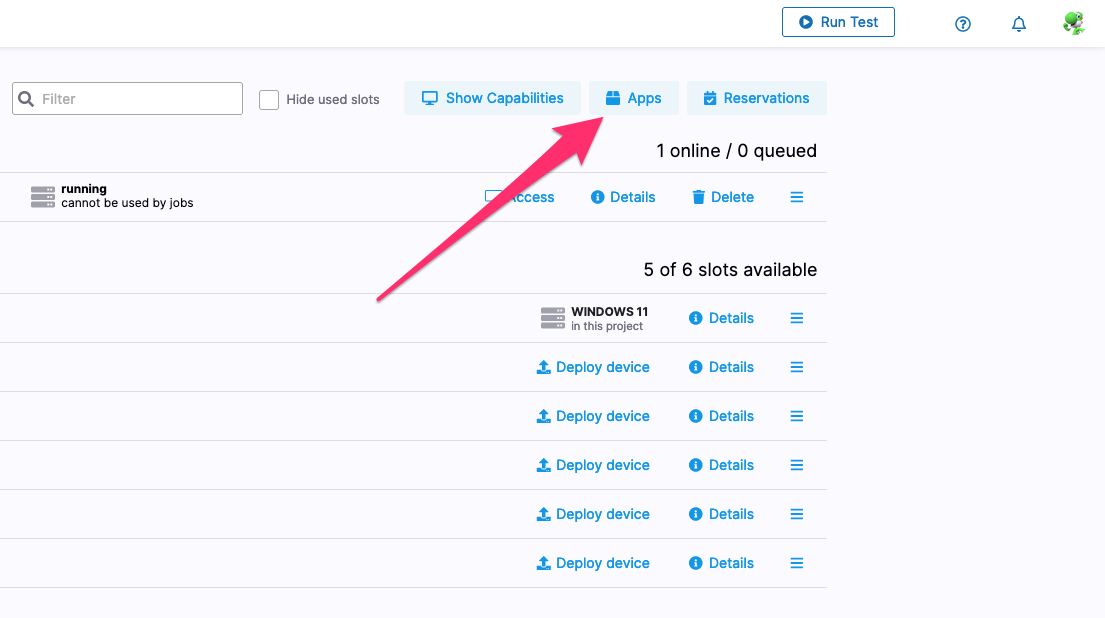
If this is the first time uploading an app to this webmate project, you will only see a button to upload your first app. Go ahead and click on Add new App.

If the project already has Apps uploaded to it, you will now see an overview of all available apps in the project. Here you can click on Add Package.

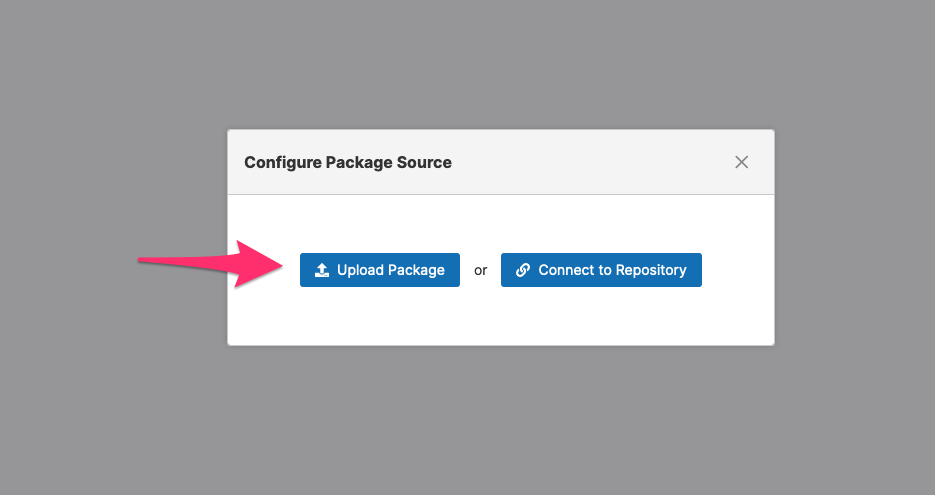
Now choose if you want to upload the file from your computer or to connect to an MS AppCenter Repository.
After you have uploaded the app, you can see it in the list of installed packages on the left. webmate will automatically generate a so called instrumented version of your app package. This modified package allows webmate to simulate certain functions like GPS, camera, biometrics, and more. You can delete the package (1), upload a new version (2) or download the original and the instrumented version (3).
