
Set up an audit
This section explains how to configure and start an accessibility audit in Audit Lab.
An audit defines what should be tested, which rules or templates are applied, and which pages or objects are included in the analysis. By properly configuring an audit, you can ensure that accessibility checks are executed consistently and that results are structured for review and remediation.
Create an Audit
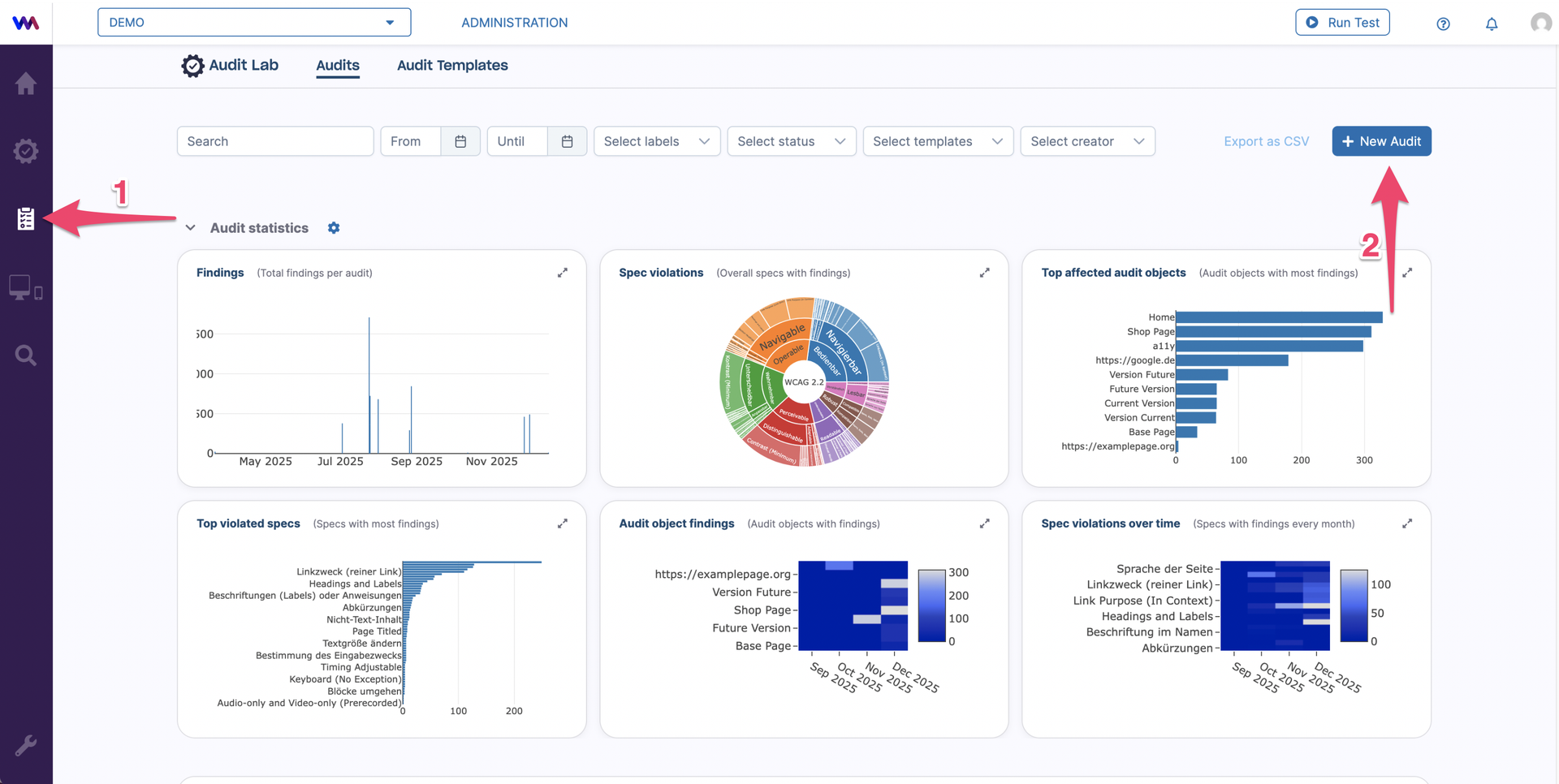
To create a new audit, go to Audit lab (1) and click New Audit (2).
To create an audit, select a template or create a new one (1), then click Start Audit (2).
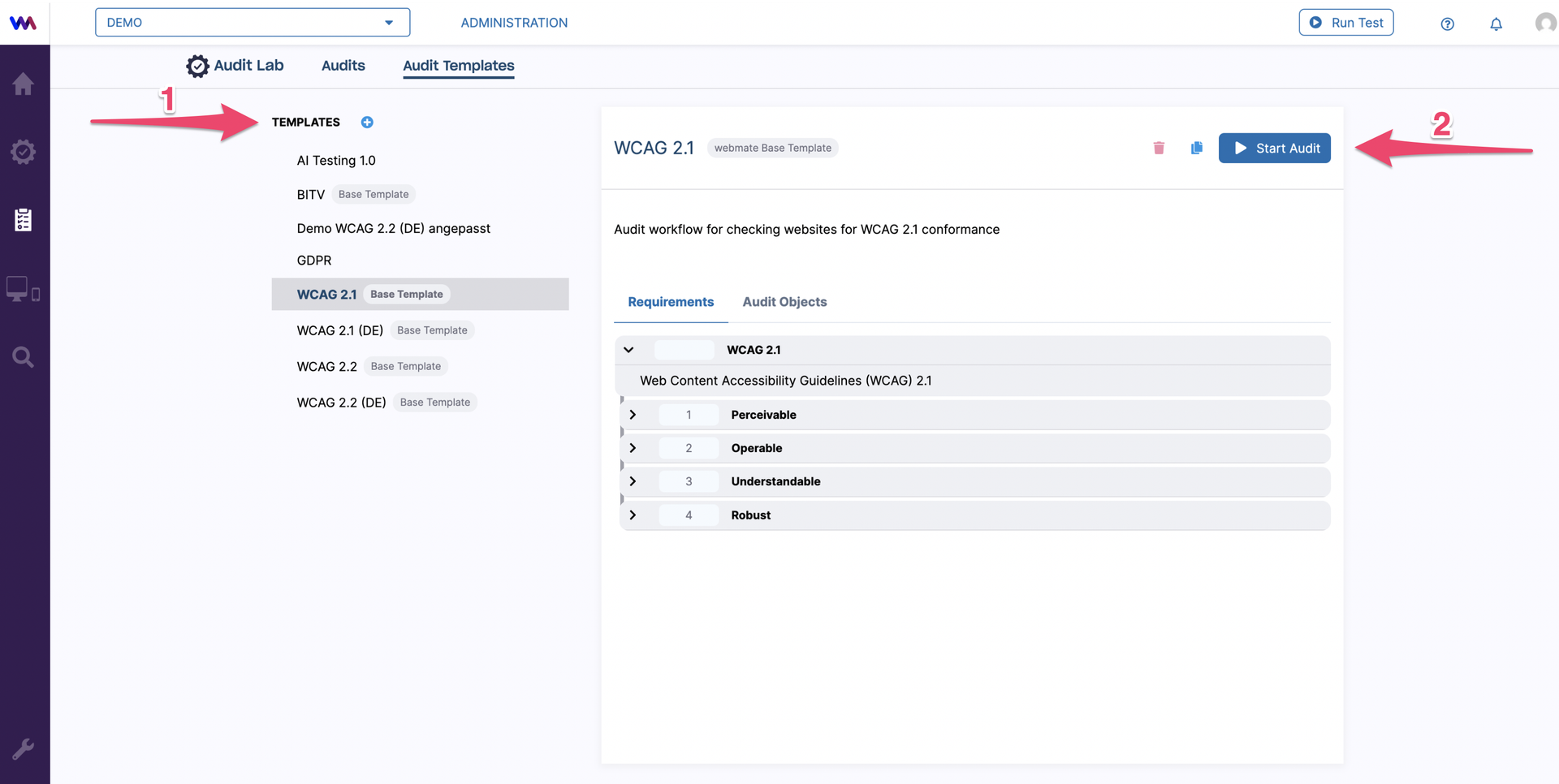
You can find descriptions of the available templates in our Audit Lab templates article.
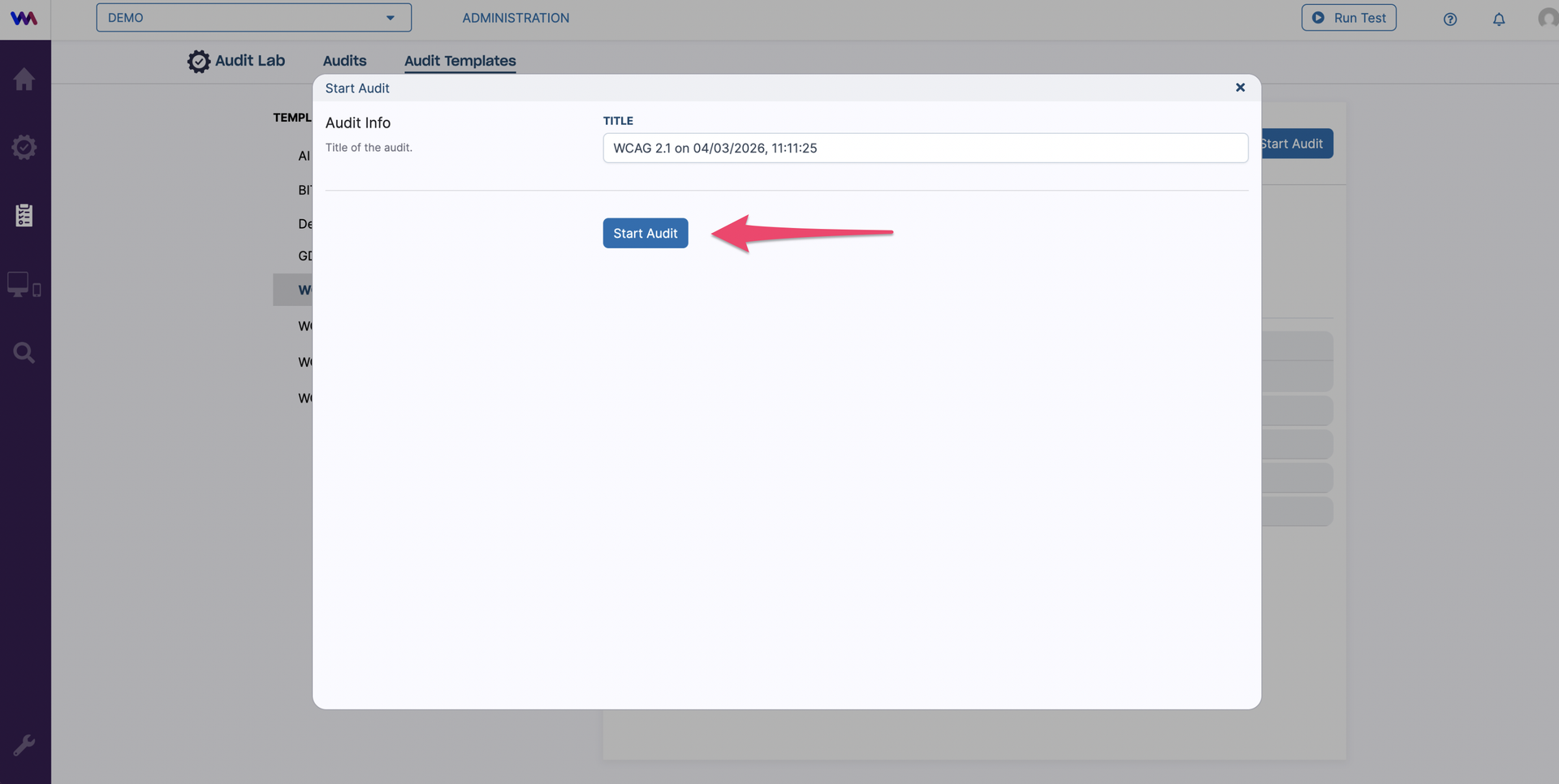
Once the audit is created, a pop-up window appears where you can modify its title and start the audit.
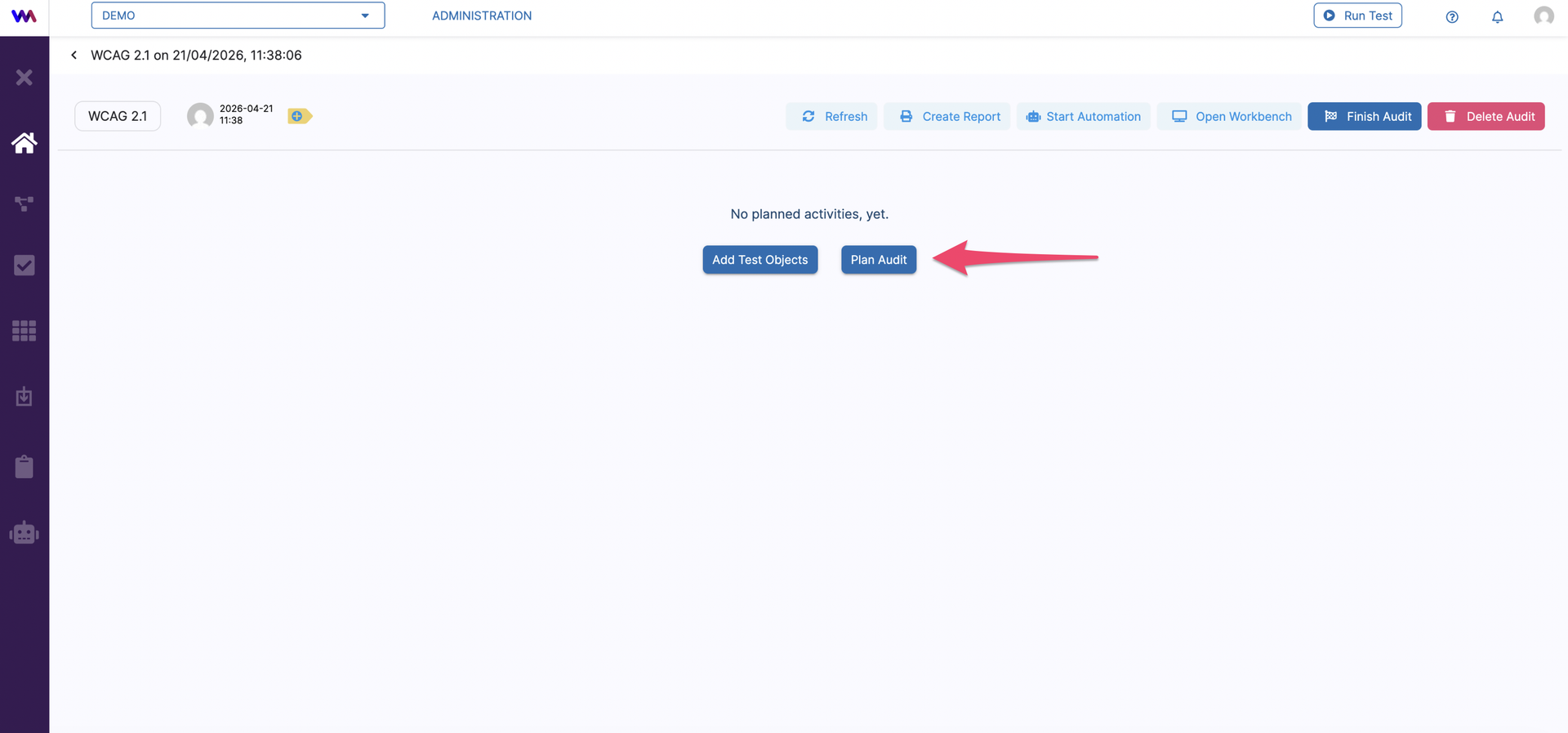
After starting the audit, you are redirected to the homepage, where you can add an object and plan the audit.
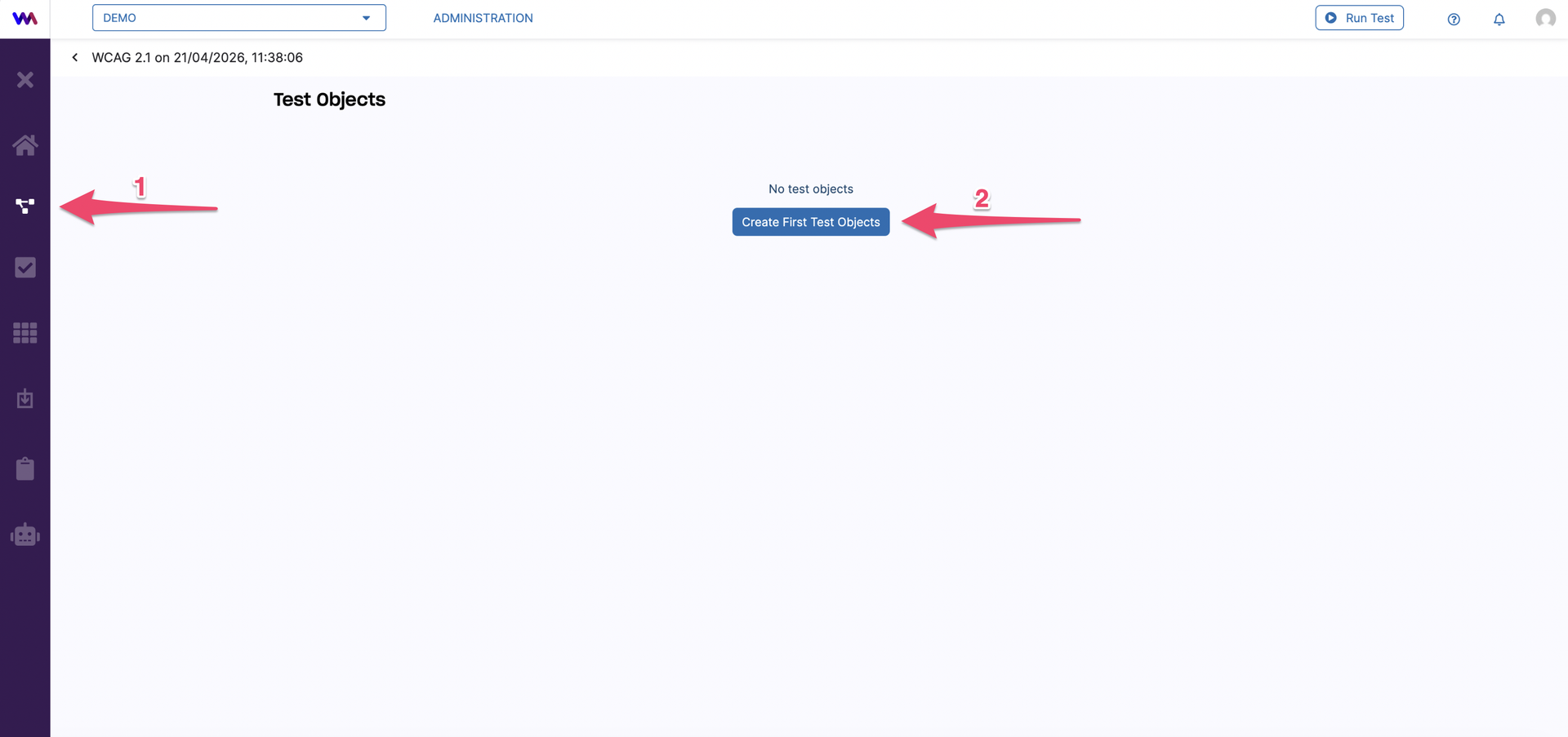
To add a new object for accessibility testing, on Test Object tab (1) click Create First Test Object (2).
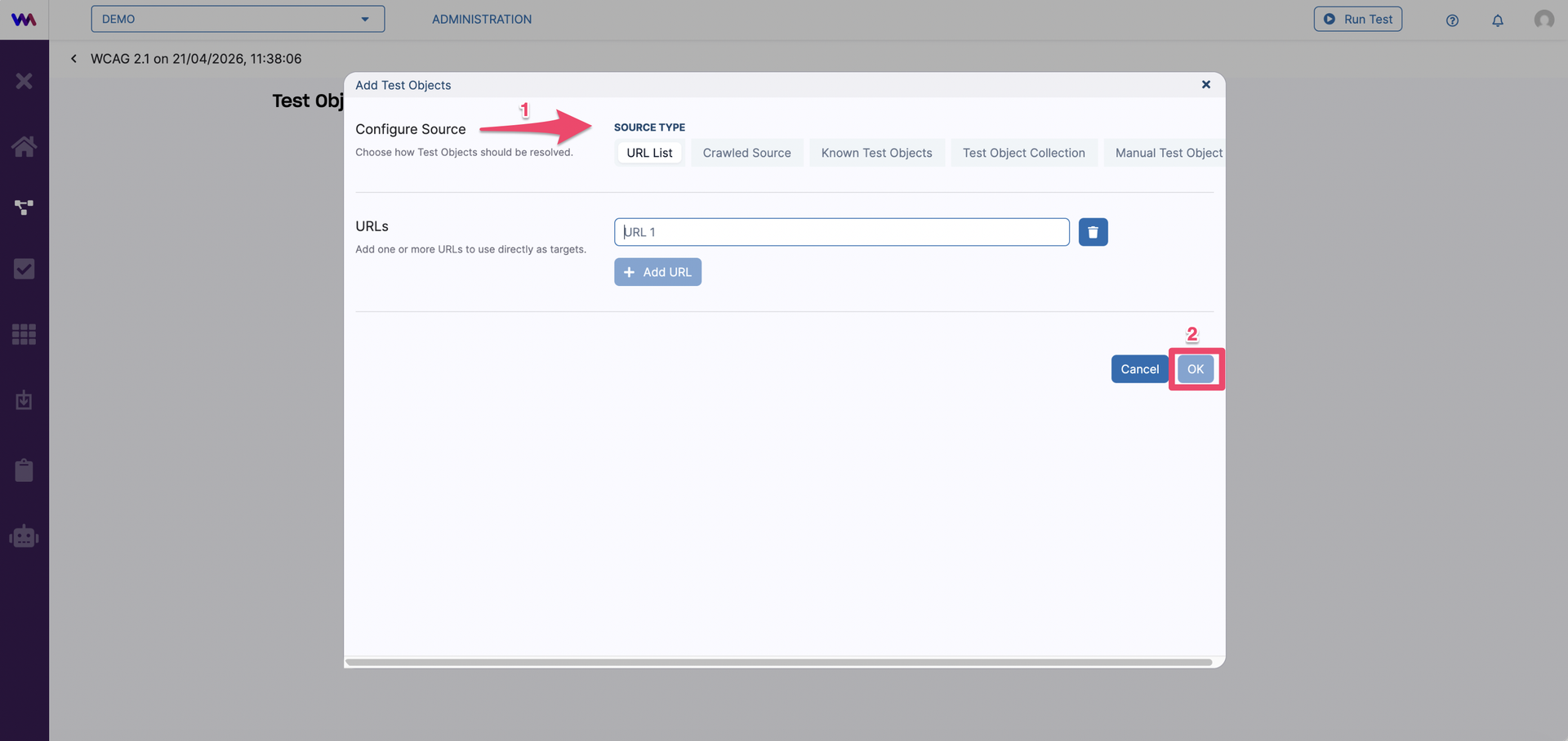
A pop-up window appears where you can choose your source type (1) and add your test object. Once you’ve added the object, click OK (2).
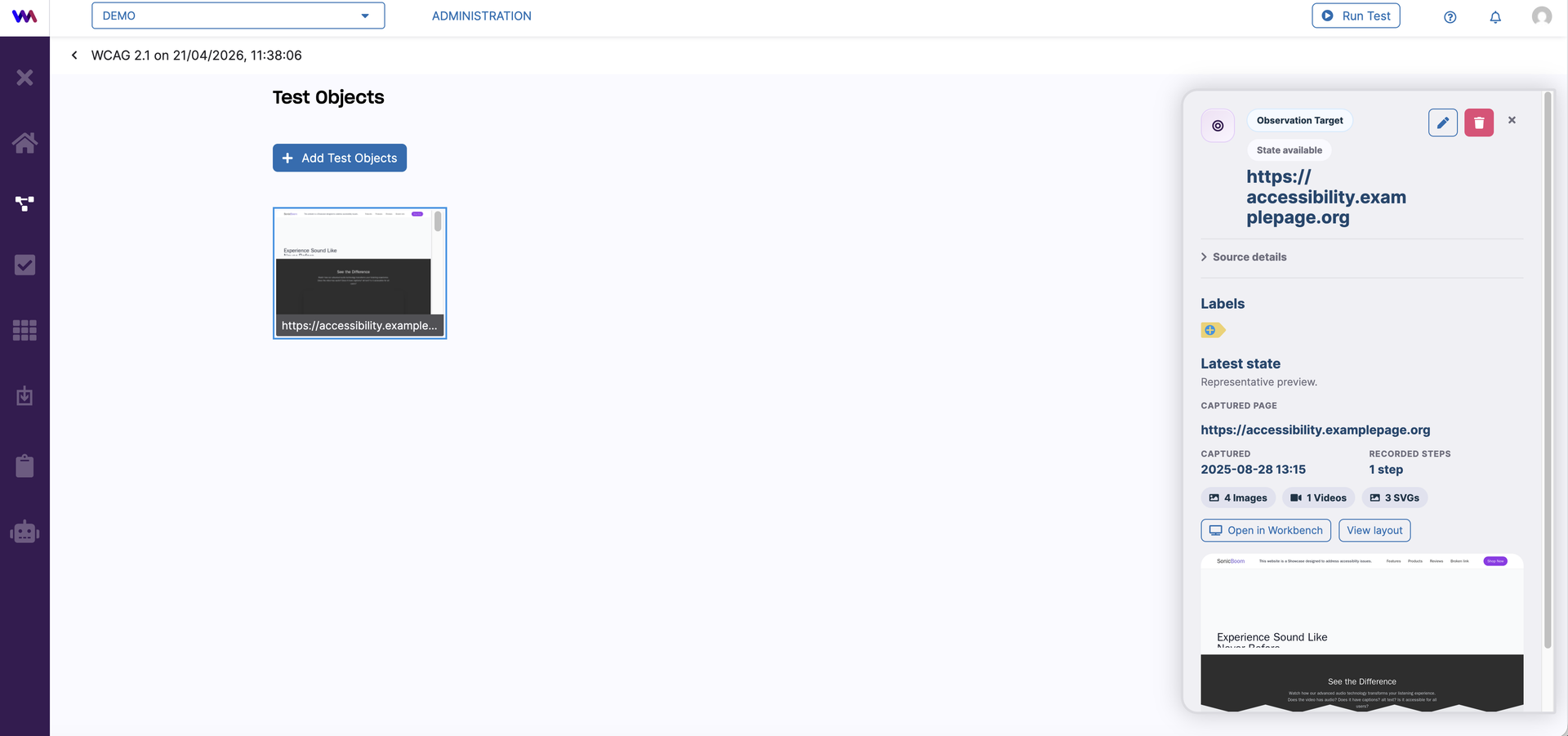
You will then be redirected again to the Test Objects tab, where you can review the newly created object and view its general information.
Next, go to the Planning tab (1) to choose which specs to test. Select all modules at once (2), or select modules manually using the relevant boxes (3).
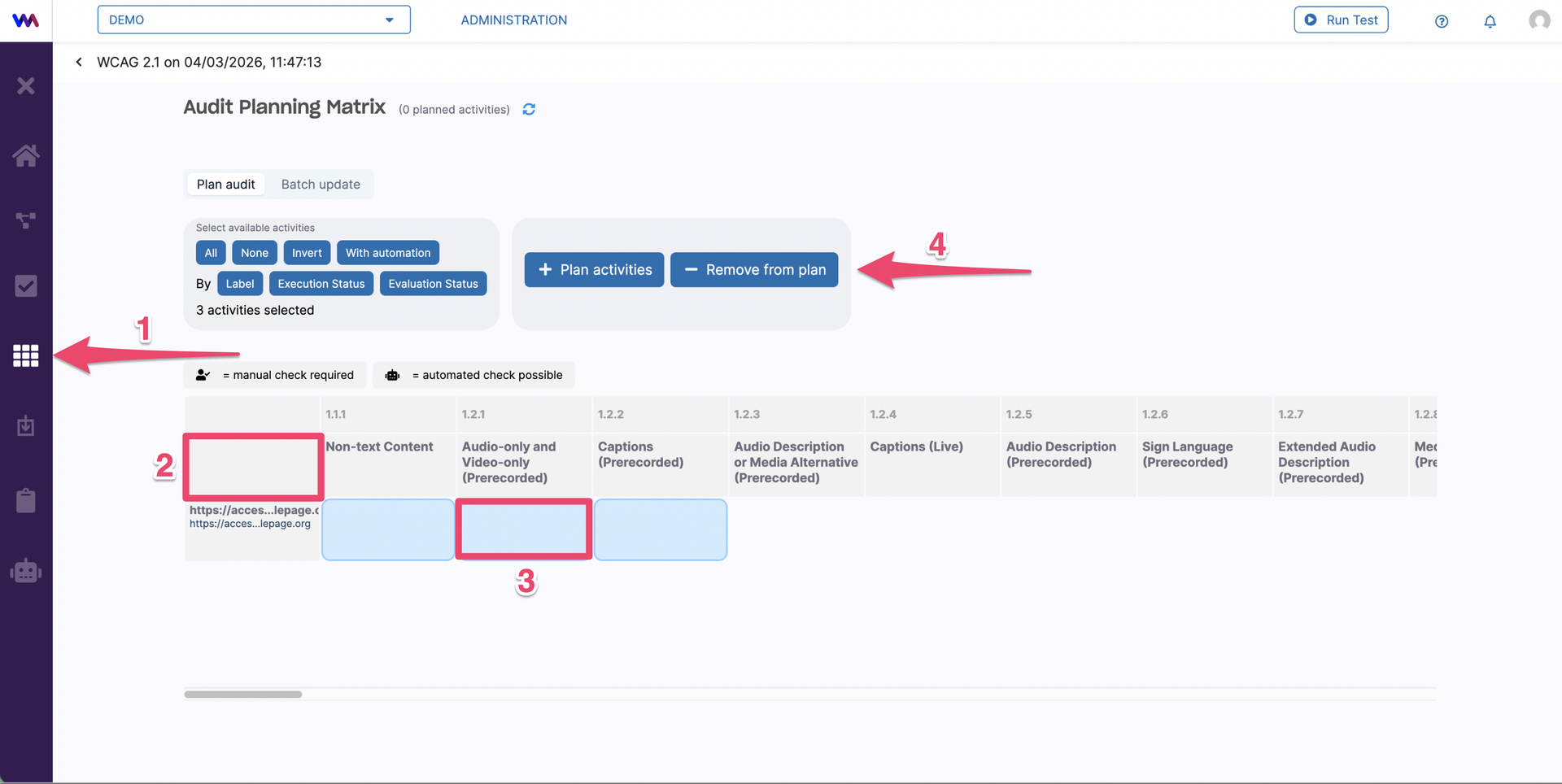
Click Plan Activities (4) to create audit activities for the selected specs you wish to test.
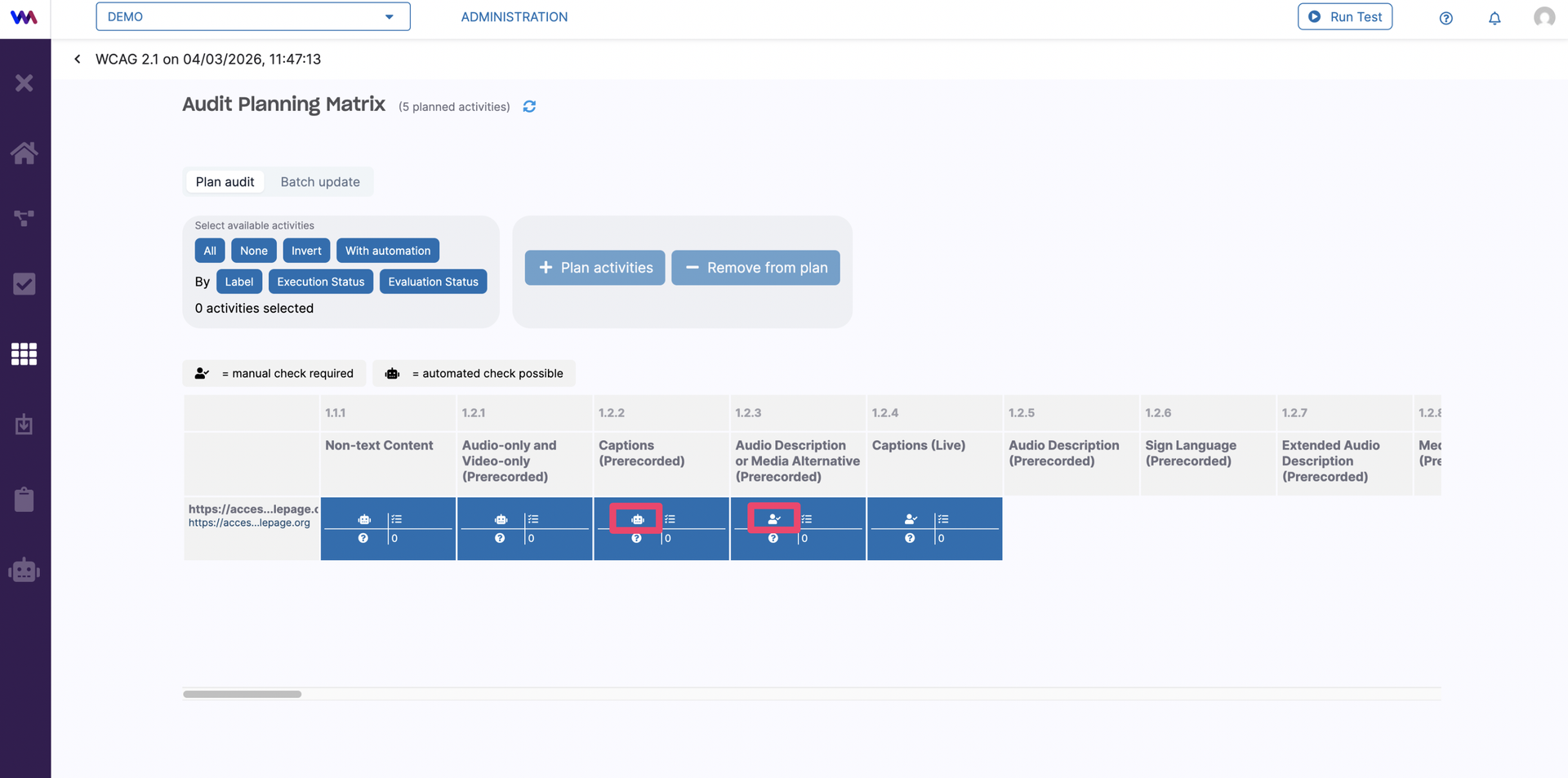
Once the activities are created, each box indicates whether automatic checks are available for the respective module and provides additional high-level information about it.
Next, navigate back to the Audit tab to view the activities created for the selected modules (1). Here, you can manually set the audit status for each module as ‘Passed’, ‘Failed’, ‘Not applicable’ or ‘Undecided’ (2). You can also add a finding by clicking Add New Finding (3).
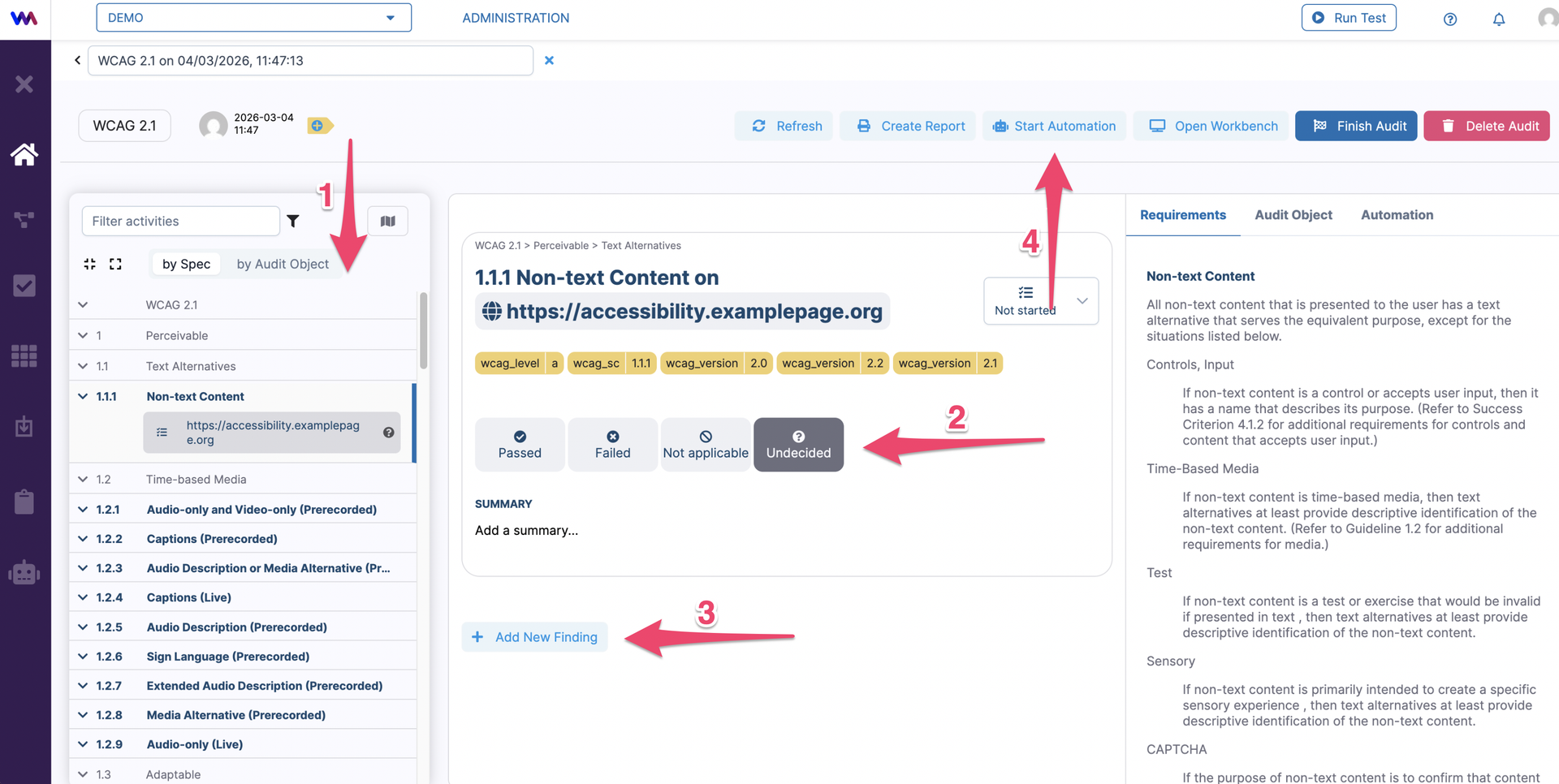
Finally, you can start an automatic audit for the selected specs by clicking Start Automation (4). More information about automating an audit can be found in our documentation under Audit Automation .