
Cypress Testing
Cypress is a modern framework for automated web application testing. It is an alternative for Selenium-based test automation to test web applications.
Please note that webmate-cypressbridge is designed exclusively for testing with desktop browsers and is not compatible with mobile browsers.
Preparing Cypress Testing on webmate
To use Cypress with your webmate device infrastructure, first download the webmate-cypressbridge binary. (The latest
version of the binary is 1.0.20. You can find the version with webmate-cypressbridge --bridgeversion):
| OS | Link | SHA-256 |
|---|---|---|
| Windows | Download (opens in a new tab) | a0abc00868fc9b6e85baccd3f36fe603e11091baf10d0d07a2c42f42b6d27ca6 |
| Mac | Download (opens in a new tab) | bdc2698798ec54b96f1a248825833fc390dd02b07956fe5e5c07ca1eb1fdaec0 |
| Linux | Download (opens in a new tab) | d789c30735e34d4830ec92ddb9291931e5a284a779e099da11cc98642c069c71 |
Specify the browser and browser version that you want to use in your test in a configuration file.
Name the configuration file webmate-cypressbridge.conf and save it to your user’s home directory on the machine where you run Cypress.
Alternatively, you can also create a directory .webmate/ in your home directory and put the configuration file there.
You can also specify the path to the configuration file explicitly by setting the environment variable WEBMATE_CYPRESSBRIDGE_CONFIGPATH.
The following sample configuration configures Cypress to use a Chrome 126 on a Windows 10 VM in your webmate device infrastructure.
| |
The webmate-cypressbridge supports both types of webmate API keys. The traditional API key follows the UUID format, e.g. c1e3effb-xxx-xxx-xxx-xxx, and requires the inclusion of the webmate-user (email) in the configuration. On the other hand, the new longer API key, e.g. xxxxxxxxxxxxxxxxxxxxxxxxxxxxxxxxxxxxxxxxxxx=, does not require the webmate-user information.
Starting from version 1.0.16 of CypressBridge, you now have the option to set a timeout for terminating a Cypress session in webmate due to inactivity. In this context, “inactivity” refers to the period during which no Cypress commands are sent to the browser. This timeout can be configured in the webmate-cypressbridge.conf file using the sessionTimeout parameter.
You can specify the timeout duration in seconds (e.g. 120s), minutes (5m), or hours (1h). If you want to disable the timeout, you can set it to a negative value. However, it’s generally recommended to have a timeout configured. If the sessionTimeout is not defined in the configuration file or its value is set to 0s, a default timeout of 360 seconds (6 minutes) will be used.
Starting with version 1.0.17 of CypressBridge, you can now specify which Cypress version your project is using. To do this, add the cypressVersion property to your webmate-cypressbridge.conf, for example cypressVersion: v14. This can help stabilize tests—especially when running them in Firefox—since Cypress’ internal handling of Firefox has changed significantly between major versions. Note: When setting cypressVersion, specify only the major version (for example, v14, not v14.2.1).
Support for executing Cypress on a macOS template is coming in one of the next releases.
Starting a Cypress Test
For Cypress, the webmate Cypress Bridge is just a custom browser binary. You make Cypress use this
“pseudo browser” by setting the --browser command line option to the location where the bridge binary
is stored in your file system.
.conf and not something else like .conf.txt.
By default, some operating systems hide the true file extension.After setting that option, you can use Cypress as usual, i.e., you may open the interactive Cypress UI
with cypress open or run a test suite with cypress run. Here an example of how to start an interactive session
on a Mac.
| |
The current version of Cypress on Windows sometimes has issues identifying the correct browser type. In these cases, it is possible to append the browser type manually to the binary path:
| |
By default, the webmate-cypressbridge writes its logging output to the file webmate-cypressbridge.log in your home
directory. You can change the location of that log file by setting the logfile entry in the configuration. When you set
the configuration parameter verbose to true, the cypress bridge creates more detailed logging output.
When you start a Cypress test, webmate chooses a device in your project that is available for automation and provides the requested browser. If you have no such device deployed, a new one will be started automatically. This may take a few seconds longer.
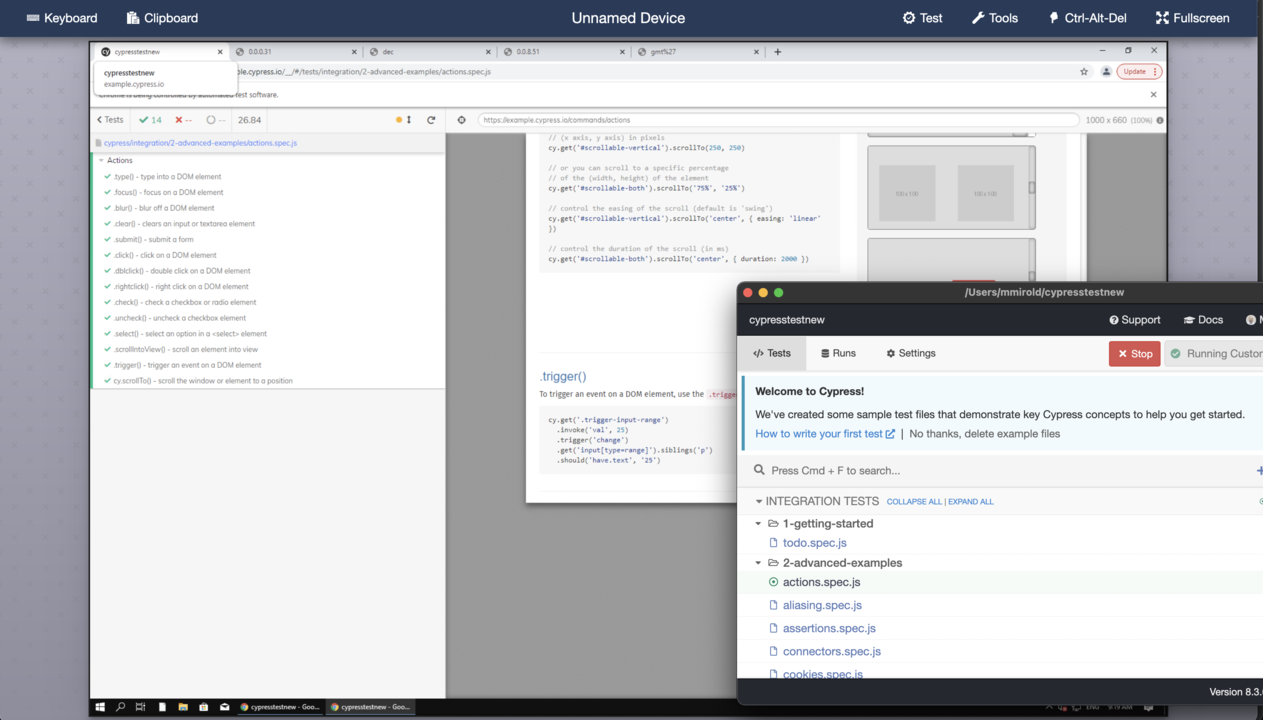
To get a better understanding of what is going on in your test, you may open the corresponding device workbench, watch the running session, and use the debugging tools in the browser.
Specifying a Proxy Server
If you need to use a proxy server to access the internet, you can specify that server in the configuration file, e.g.
proxy: https:myusername:mypassword@proxyhostname:proxyport
Network Requirements
During execution, the bridge communicates with the server app.webmate.io via SSL on port 443. The traffic
consists of HTTP requests and one or more WebSocket connections. Within the WebSocket connections, the
data stream from your local Cypress process is tunneled within SSH channels.
webmate-cypressbridge builds upon the great open-source project Chisel (opens in a new tab)
.
Compatibility
Below is a list showing which Cypress version can be used to test which browser in webmate using the Cypress bridge.
In general, it is recommended to use the latest version of the webmate-cypressbridge. At the current time, this is version 1.0.20.
Chrome and Edge (Windows; macOS compatibility currently in beta stage)
- Cypress v12 | up to 126
- Cypress v13 | 126 - 134
- Cypress v14 | 135 - 140
- Cypress v15 | 141 - 145
In general, newer Cypress versions may also be compatible with older browser versions, as there have been no major internal logic changes.
Firefox (Windows only!)
- Cypress v12 | up to 126
- Cypress v13 | 128 - 133
- Cypress v14 | 136 - 142
- Cypress v15 | 142 – 147
Browser versions that are not mentioned may also be compatible but were note tested.