
Manage Test Templates
Manage reusable test templates in webmate so teams can start manual or automated runs from consistent setups.
What are Test Templates
There are two types of test templates in webmate: base templates, provided by webmate, and custom templates that you can define yourself by specifying additional information in the chosen base template.
Base templates define the kind of test you can execute, e.g. a cross-browser test or a regression test . When running a test from the base template, you have to provide the full config, like URLs and browsers, each time you start a test.
If you often run a test on the same website or the same browsers, you can create a custom template with these parameters pre-configured. When running a test from this custom template, you just have to provide the remaining parameters to start the test. Of course, you can also completely configure a test, so you can run common tests very quickly.
Creating a Custom Template
After opening a project, click on TestLab (1) in the menu on the left, then choose Templates (2) at the top. You will see all available base template at the top of list on the left (3).

Click on the Copy and Customize button.

Provide the config you want to save for your custom template, e.g. a URL (1), then click on Copy Test Template (2)

The new custom template will appear in the left column (1), and its details view will show you the parameters you pre-configured (2).

You can also use an existing custom template to create a new custom template, e.g. to further specialize the existing configuration, or to create a similar configuration.
To do so, select a custom template in the left column, and click on the Copy and Customize button (1).

Editing a Custom Template
To edit an existing custom template, select the template in the left column (1) and click the Edit button (2).

Deleting a Custom Template
To delete a custom template, select the template in the left column (1) and click the Delete button (2).
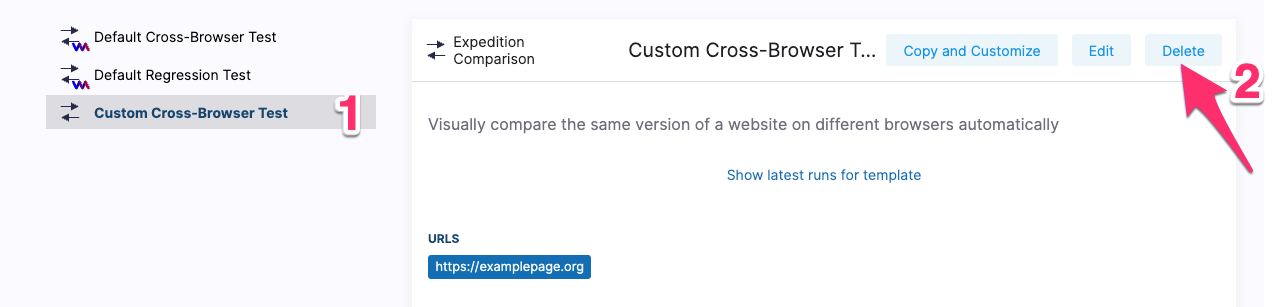
Confirm the deletion of the template in the pop-up.

Execute a test from a template
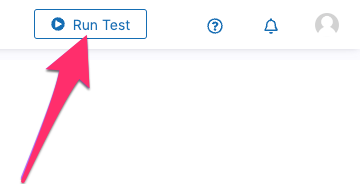
To execute a test from a template, click the Run Test button in the top-bar.
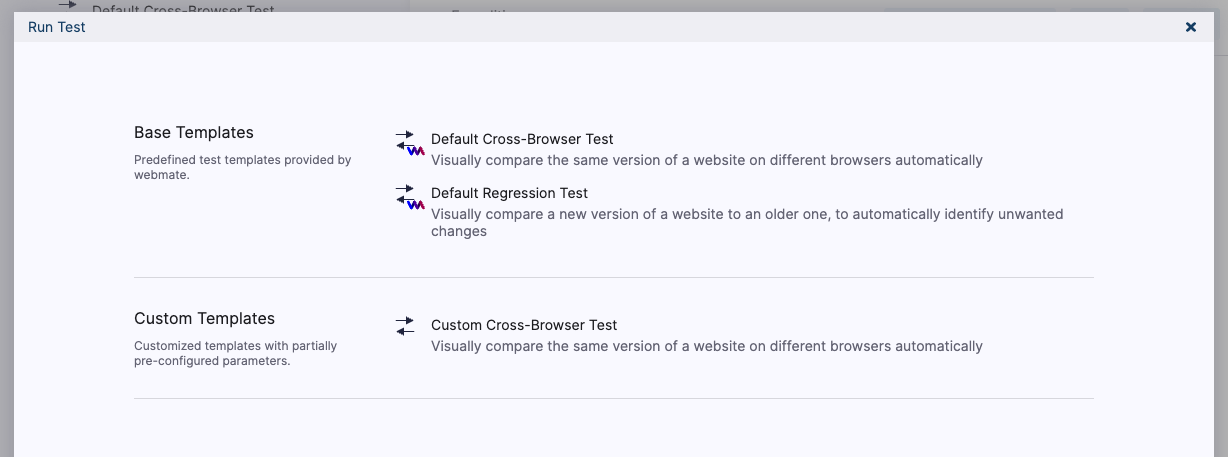
The modal that appears, contains all base and custom templates that are available in the current project. Clicking on an entry will open the corresponding dialog to start the test.
For visual test workflows, see Visual Testing .