
TestLab reports
When you open the TestLab, you first see filters at the top, followed by a pie chart and at the bottom you see a list of all test runs. In the following we will go over each aspect.
Filter test runs
At the top you can have a few dropdown filters to restrict which test runs you want to see. You can choose the time frame fo the tests, filter according to the tags, status, test types and browsers.

These filters will restrict to which test runs the pie chart is applied to and which test runs are shown in the list at the bottom.
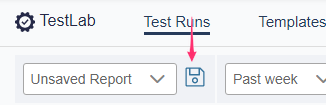
You can save a set of filters for later use by clicking on the disc icon at the left.
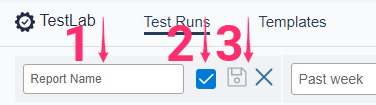
Now you can insert a name for the report (1). At the right you can click on the disc icon again to save the report (2) .The checkbox specifies whether the report is shared with all other users in the project or only visible to you (3).
Pie Chart
Below the filters you see a pie chart of all test runs applying to the filters. At the left you see the number of overall tests and number of tests per status. To the right you see a pie chart displaying different information of the tests.
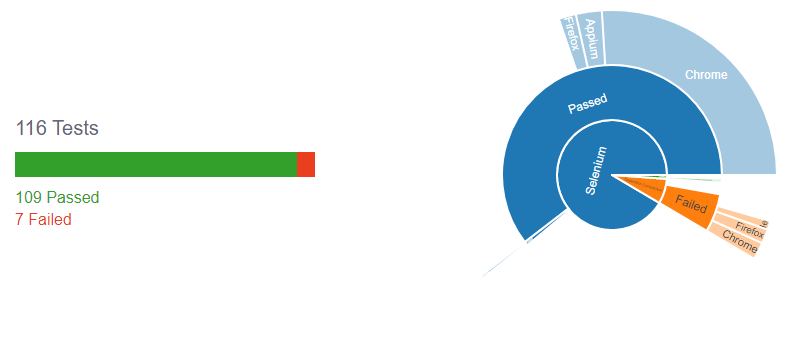
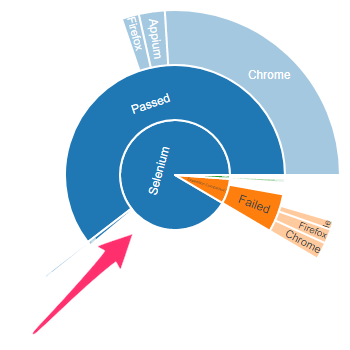
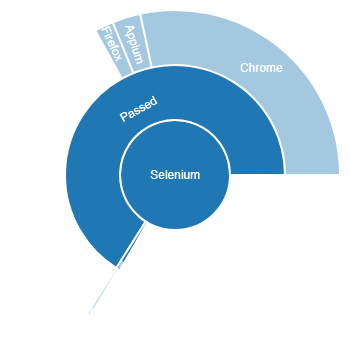
You can click on any part of the chart except in the outer level to adjust the chart so if only takes the test runs into account to which the filter matches. For example, if you click on Selenium in the example, the chart changes like this:
You can configure the chart with the drag and drop fields to the right of the chart. At the top you see a list of the currently selected attributes of test runs, which can be a maximum a three. Below that you see a list of other available attributes currently not active in the chart.
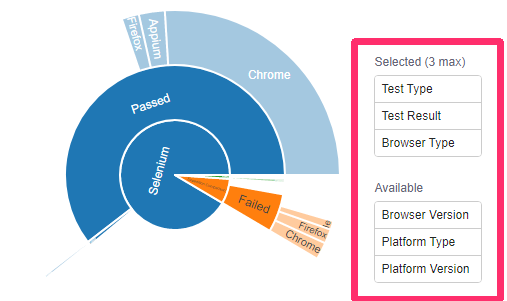
You can reorder the selected attributes to change the levels of the chart. The attribute at the top of the list is the innermost level of the chart, the second the middle level and the third attribute the outer level. To change the attributes you can drag and drop currently selected ones to the lower list and then drag other attributes from the list of available ones to the upper list.
Create Jira issue
If your administrator set up the Jira integration in webmate , you can create issues from your test run results. Navigate to the test lab and open the test run you want to report.
Click on the Report Issues button.

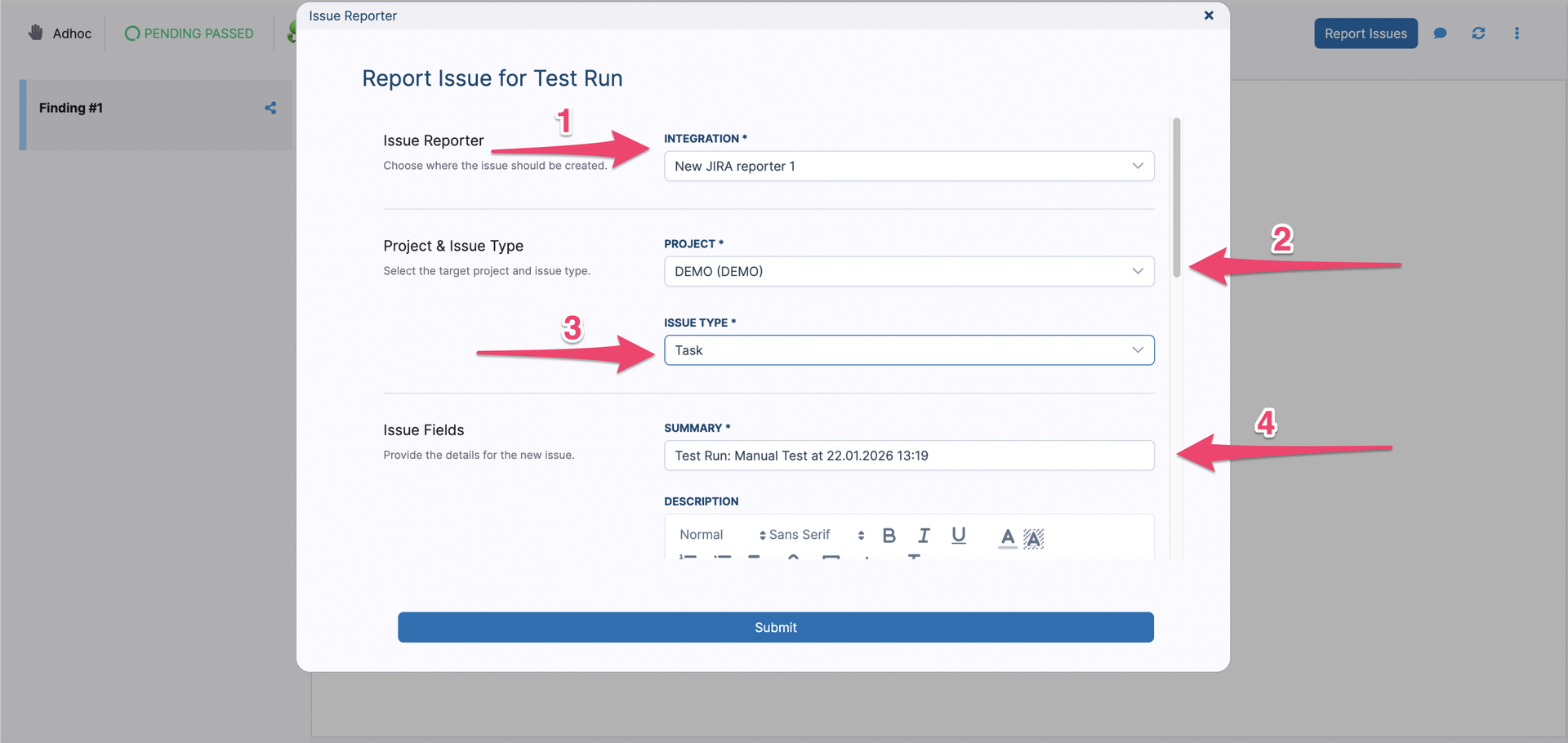
In this dialog, choose where the issue should be created (1), the target project and issue type (2), (3). Provide the details, like summary, description, etc., (4) for your issue. Fields marked with asterisk are mandatory.
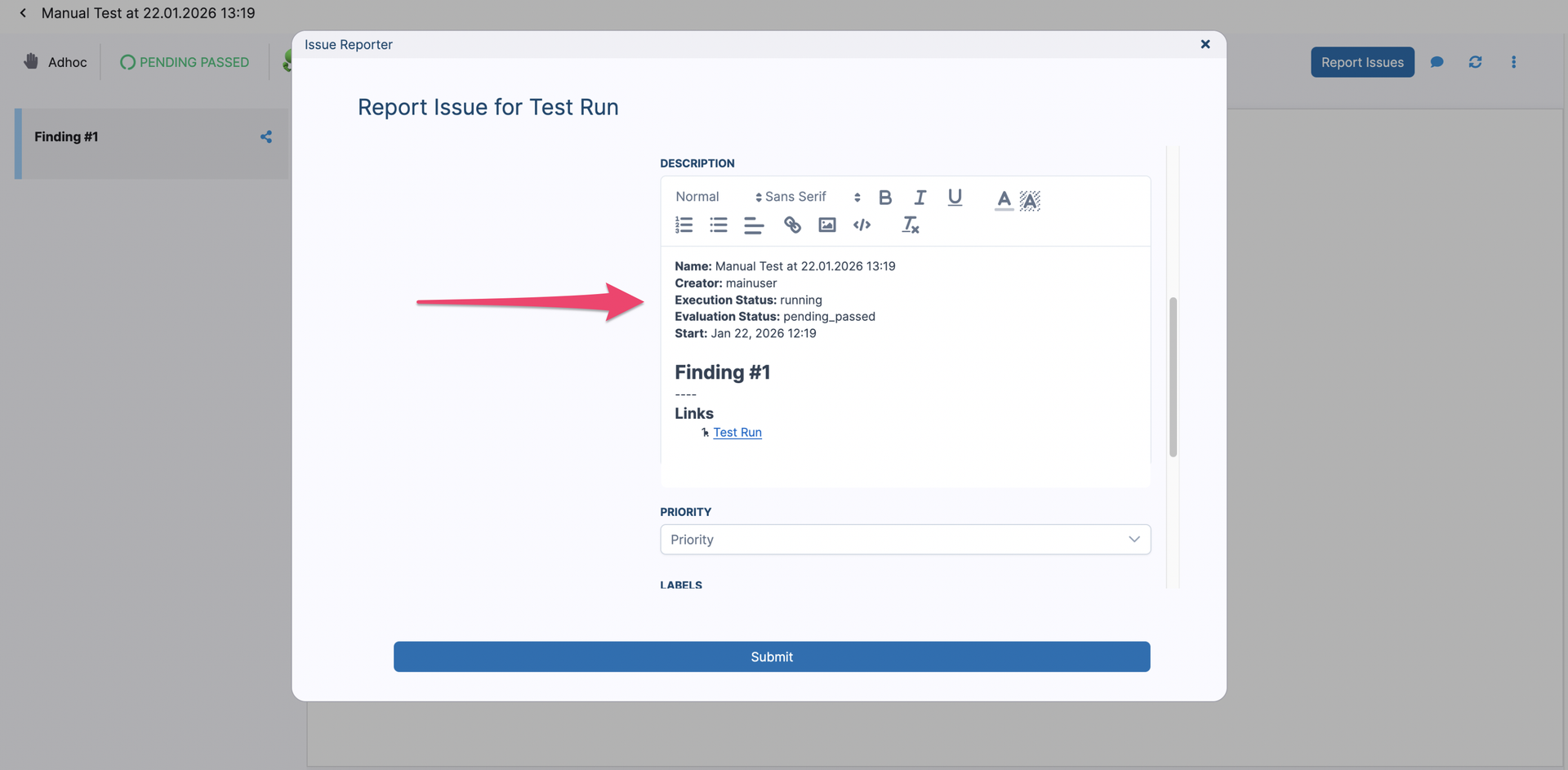
In the description field, a description of all findings during the test run are pre-filled and you are able to modify the details.
You can also choose whether to include the priority of the issue (1), a label (2) and the due date (3). Finally, you can add available attachments, like screenshots, videos and other artifacts from the test run that should be included in the Jira issue (4).
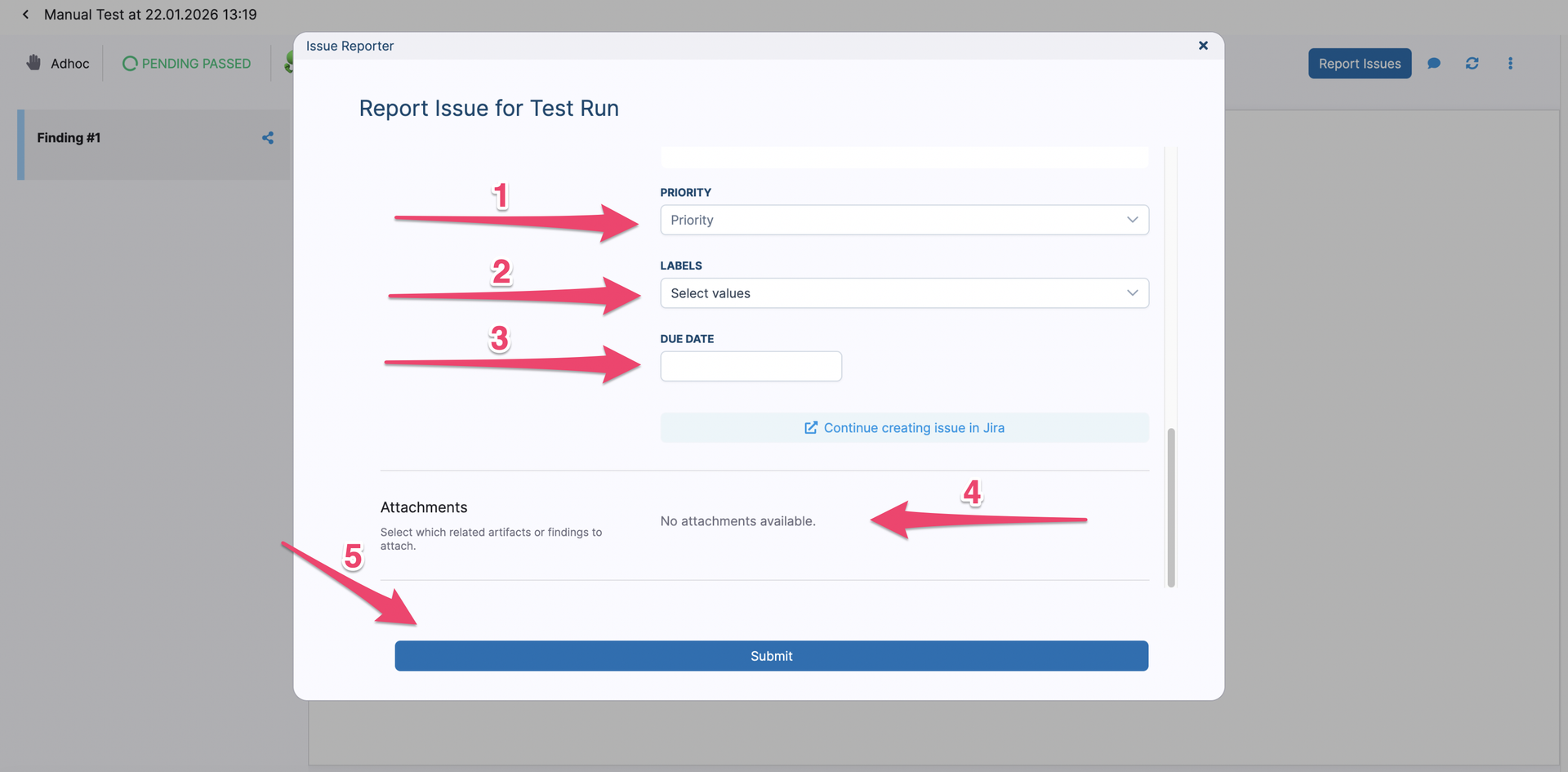
Click the Submit button (5) to create your issue.
Share a Finding
You can also share a single finding from your test run results. Navigate to the test lab and open the test run of the finding you want to share.
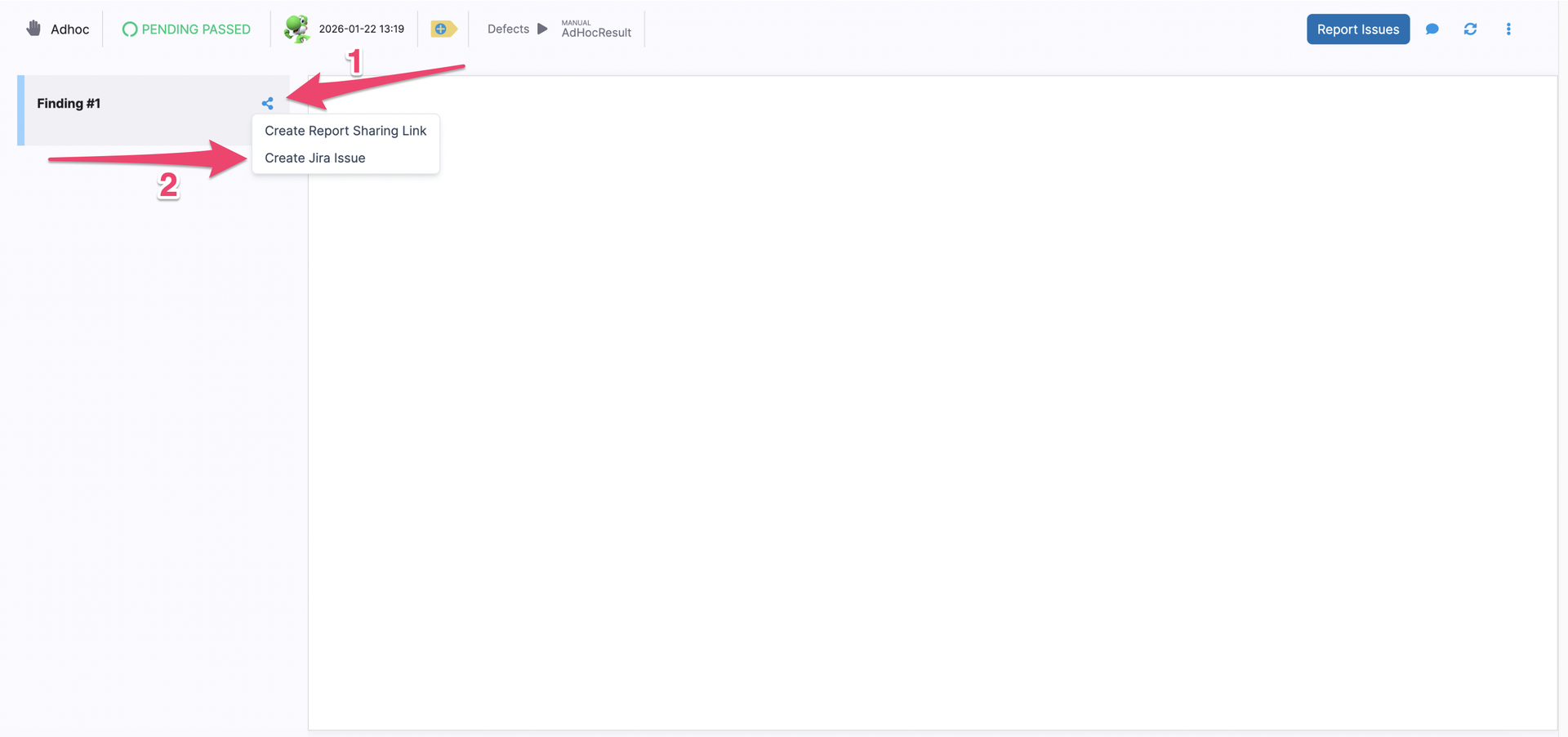
Click on the Sharing button and select Create Jira issue.
In the dialog, choose where the issue should be created (1), the target project and issue type (2), (3). Provide the details, like summary, description, etc., (4) for your issue. Fields marked with asterisk are mandatory.
In the description field, a description of the finding you want to share is pre-filled and you are able to modify the details.
You can also choose whether to include the priority of the issue (1), a label (2) and the due date (3). Finally, you can add available attachments, like screenshots, videos and other artifacts from the test run that should be included in the Jira issue (4).
Click the Submit button (5) to create your issue.
Share TestLab report
If you want to share the report you are on, click the Share button. This will copy the URL of the test report to your clipboard. Please note that only users with the permissions to access the project the test report is associated with can view the test report.