
Compare the Layout of Different Systems via web
Run URL-based regression tests in the webmate web app to compare the same layout over time.
Start Test
After opening a project, click on the Run Test button (1) in the top-bar,

Then click on Default Regression Test (1) in the list of base templates , or choose a customized regression test template.

In the dialog you can insert pairs of URLs (1) to visit at the top and add more URL pairs by clicking on Add URL (2).

Below you can choose the browser the test should use by clicking on it (1). Start the test by clicking Execute test in the lower right (2).

Advanced Options
By clicking on Show advanced selection under Reference Browser, you get the option to choose from more browsers.

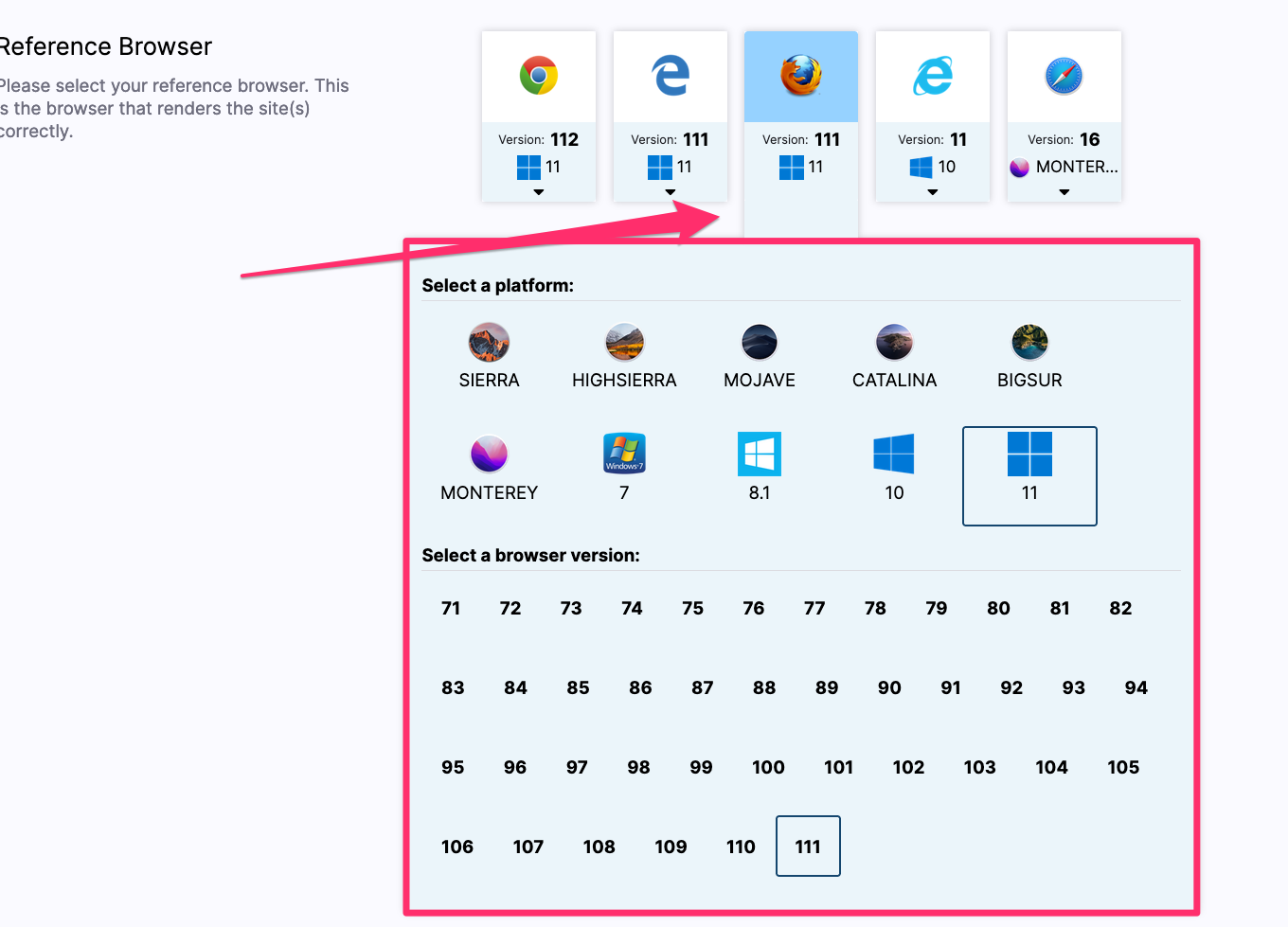
Now you can choose from more browsers and click on the arrows below the browser icons to open a menu to choose the platform and browser version.
Here you can specify the platform and the browser version the test should be using.
View Results
You can find the test results in the TestLab by clicking on your test run.

The top bar contains the number of differences across the browsers were identified between the URLs (1), followed by the list of URLs and the browser (2). You can select the URLs for which you want to view the results (3).

Below that, you see a side-by-side comparison of the rendered pages. The list of differences between the two views can be found in the side bar on the right (1). Hovering over an item in the list will highlight the corresponding elements in the browser views (2). Clicking on an item in the list will highlight it permanently and show a box with more details about the difference at the bottom (3).
