
Integrate webmate with TeamCity
The webmate TeamCity integration makes it easy to use webmate from within a TeamCity installation.
The plugin facilitates the following use cases:
- Configure webmate credentials once and use them within your automation scripts.
- Embed webmate test results within your TeamCity build output.
At present time, the webmate TeamCity plugin is distributed as a ZIP archive which can easily be installed on your server. Download the plugin ZIP file:
| Download Link | SHA-Checksum |
|---|---|
| webmate-teamcity-plugin.zip (opens in a new tab) | |
| 37c7d3c9f09867c0c44128c5c58f0a01b56e7e12fde2ee02901b477f0c6a9403 |
Installation
You first need to log in at your TeamCity Instance as a user with administrative privileges.
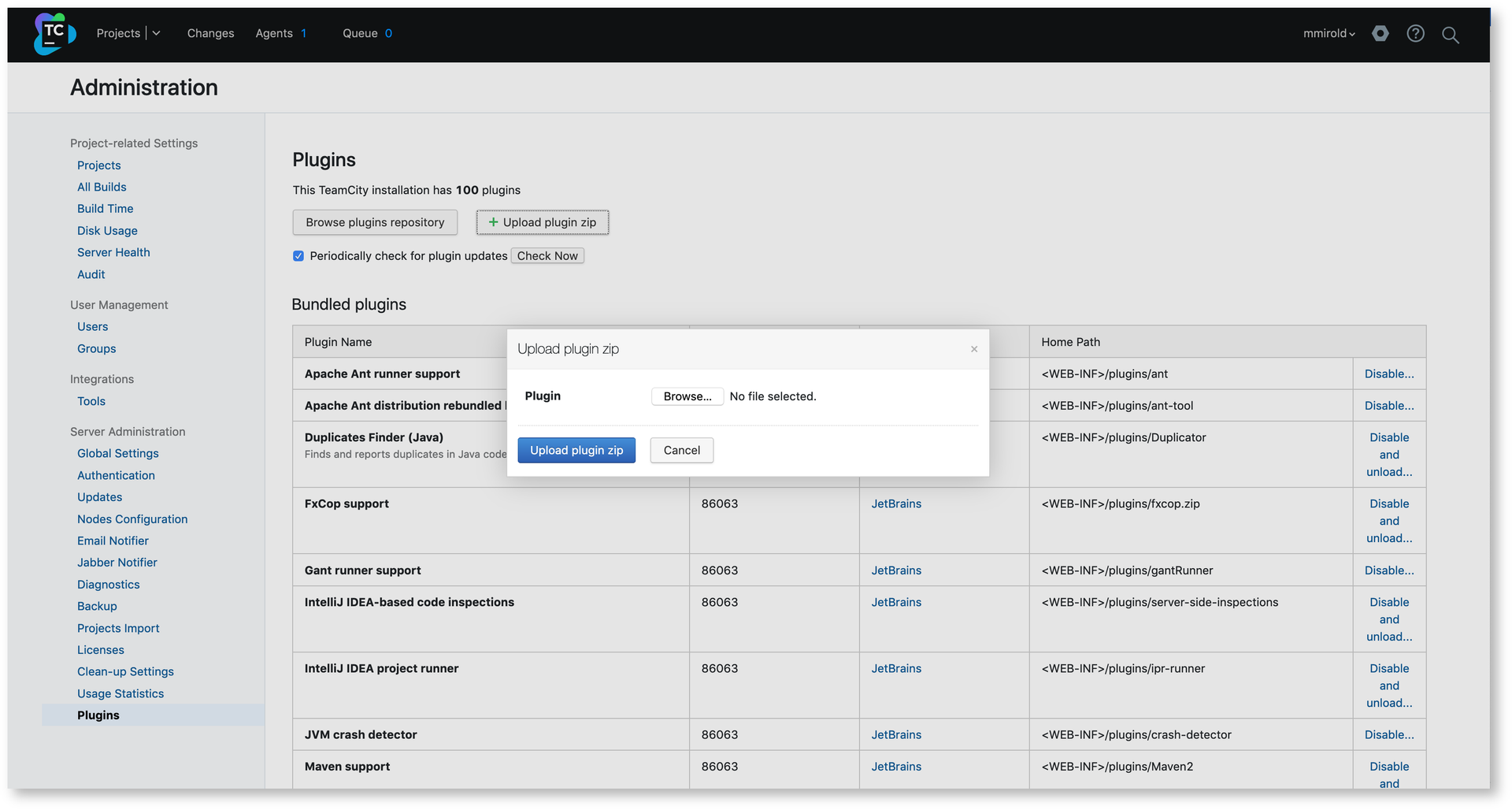
Go to Upload Plugin Zip, select the webmate-teamcity-plugin.zip and upload it.
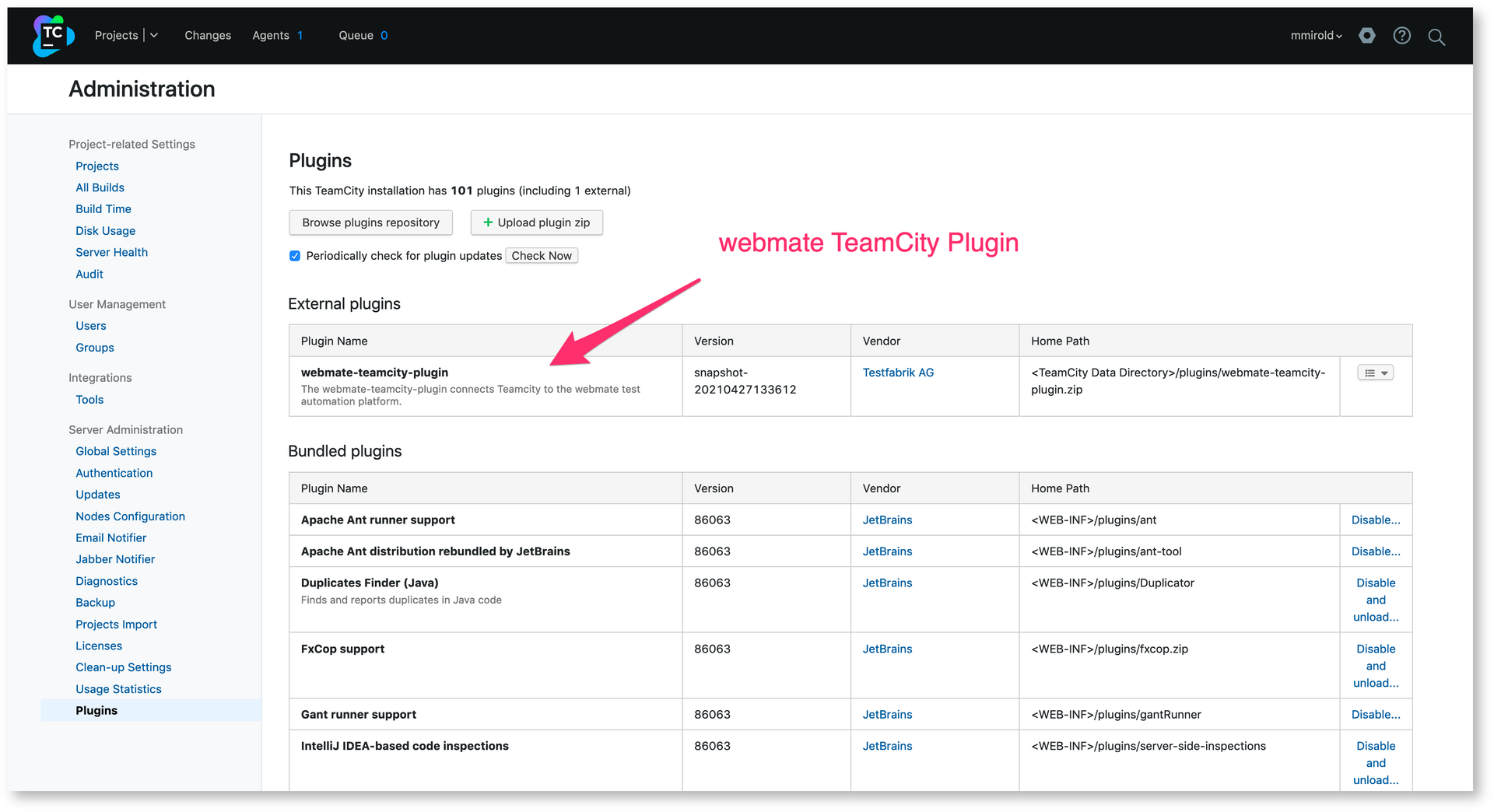
After uploading is complete, the webmate plugin is shown in the list of installed TeamCity plugins.
Configuring Builds
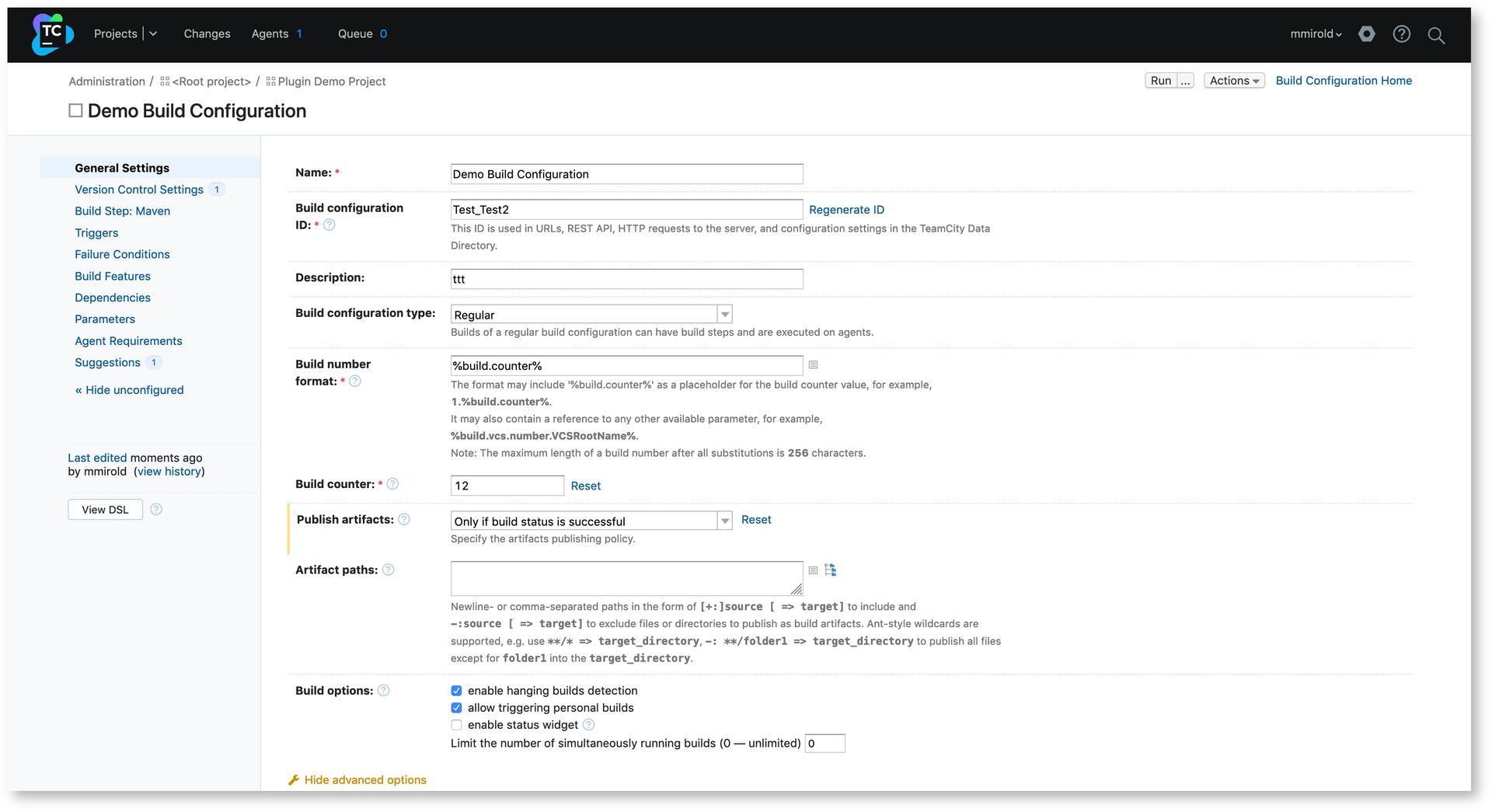
The webmate TeamCity plugin provides a TeamCity Build Feature that is available in build configurations. In order to configure webmate credentials for your test automation build, you simply need to add the corresponding Build Feature to a Build Configuration:
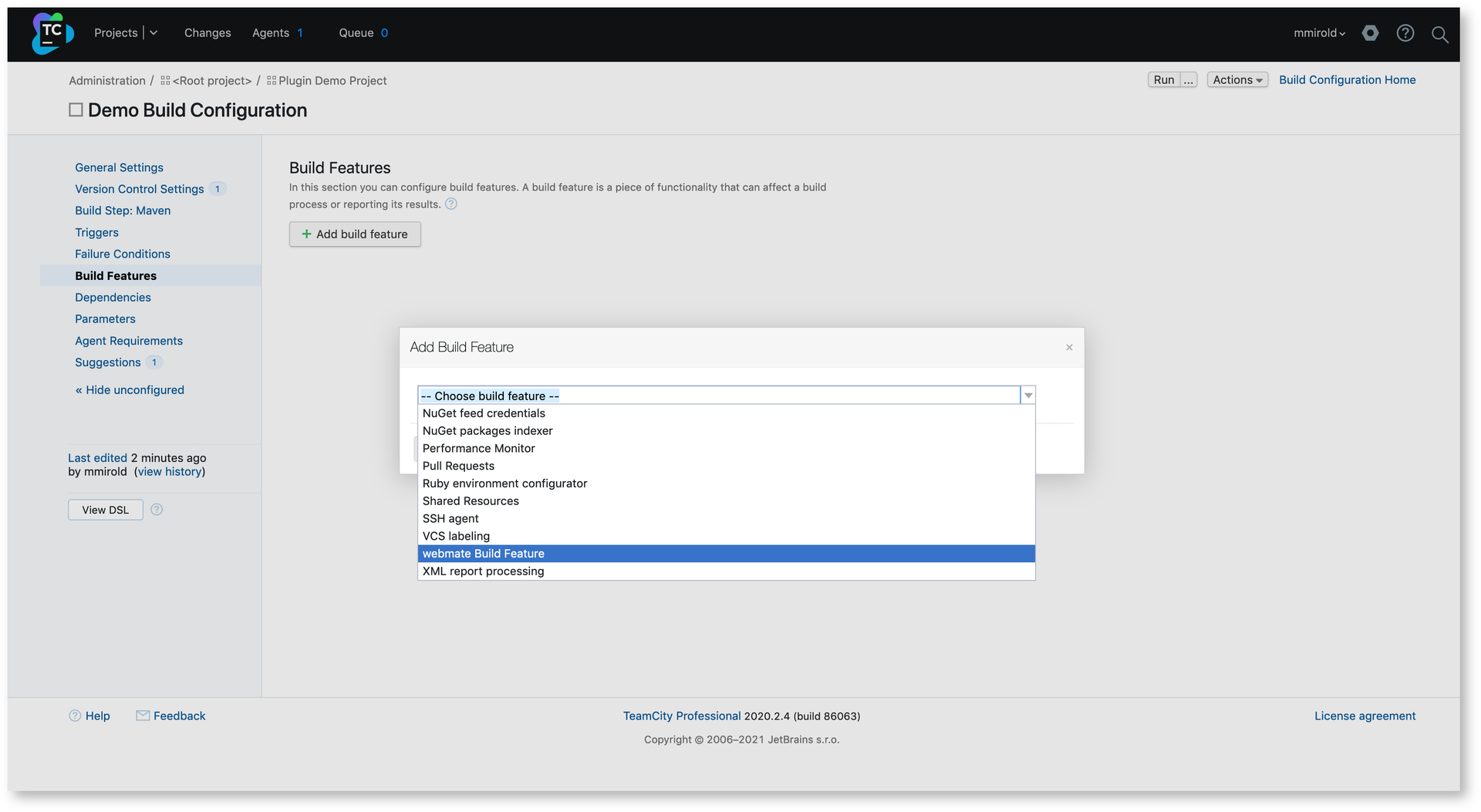
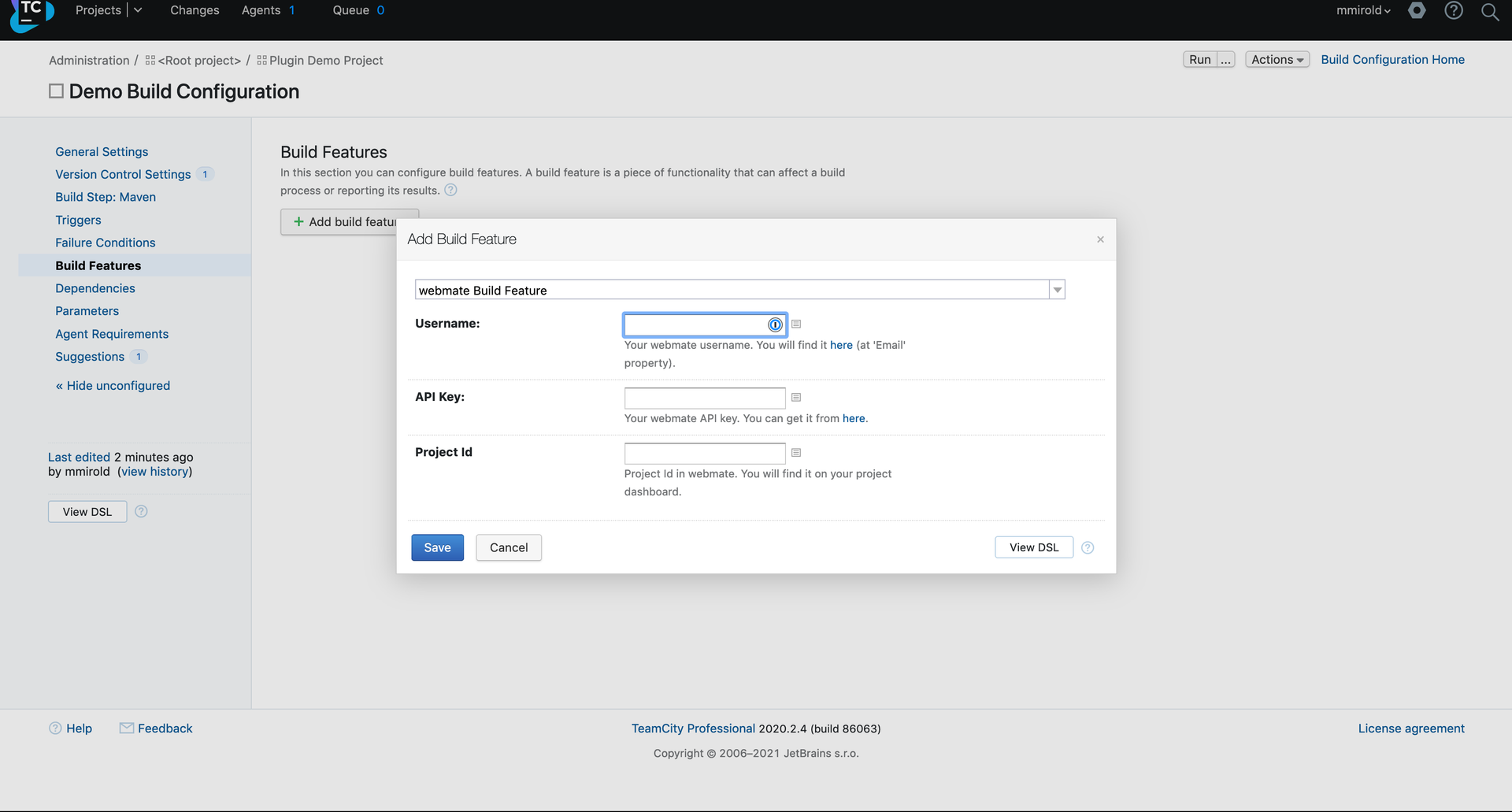
Navigate to the “Build Features” section and select “Add build feature”. A dialog is displayed that shows the available Build Features in TeamCity. Here, choose “webmate Build Feature”.
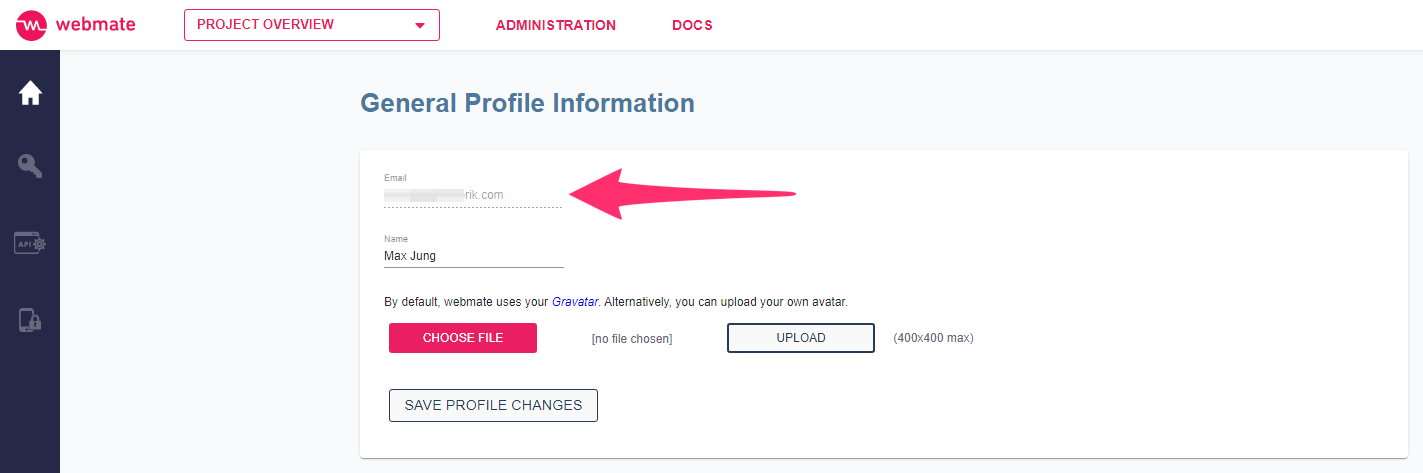
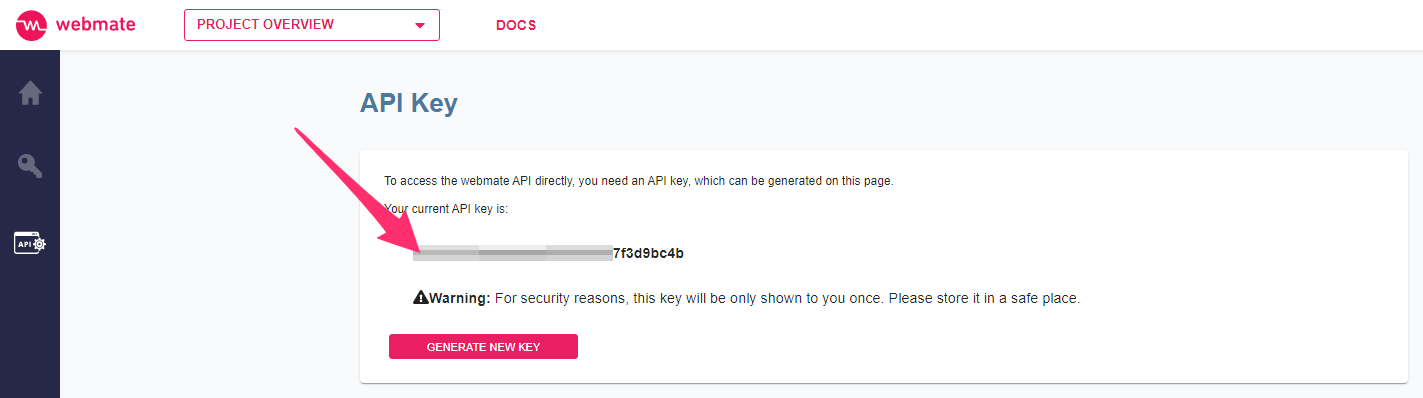
The webmate Build Feature configuration now allows you to configure credentials for your test automation build. Enter your webmate user name, your API key, and the webmate Project ID, and where you want your automated tests to be executed. For API key setup, see Manage API Keys .

After saving the build feature to the build configuration, the webmate plugin will be active whenever a build is run.
Preparing Your Tests
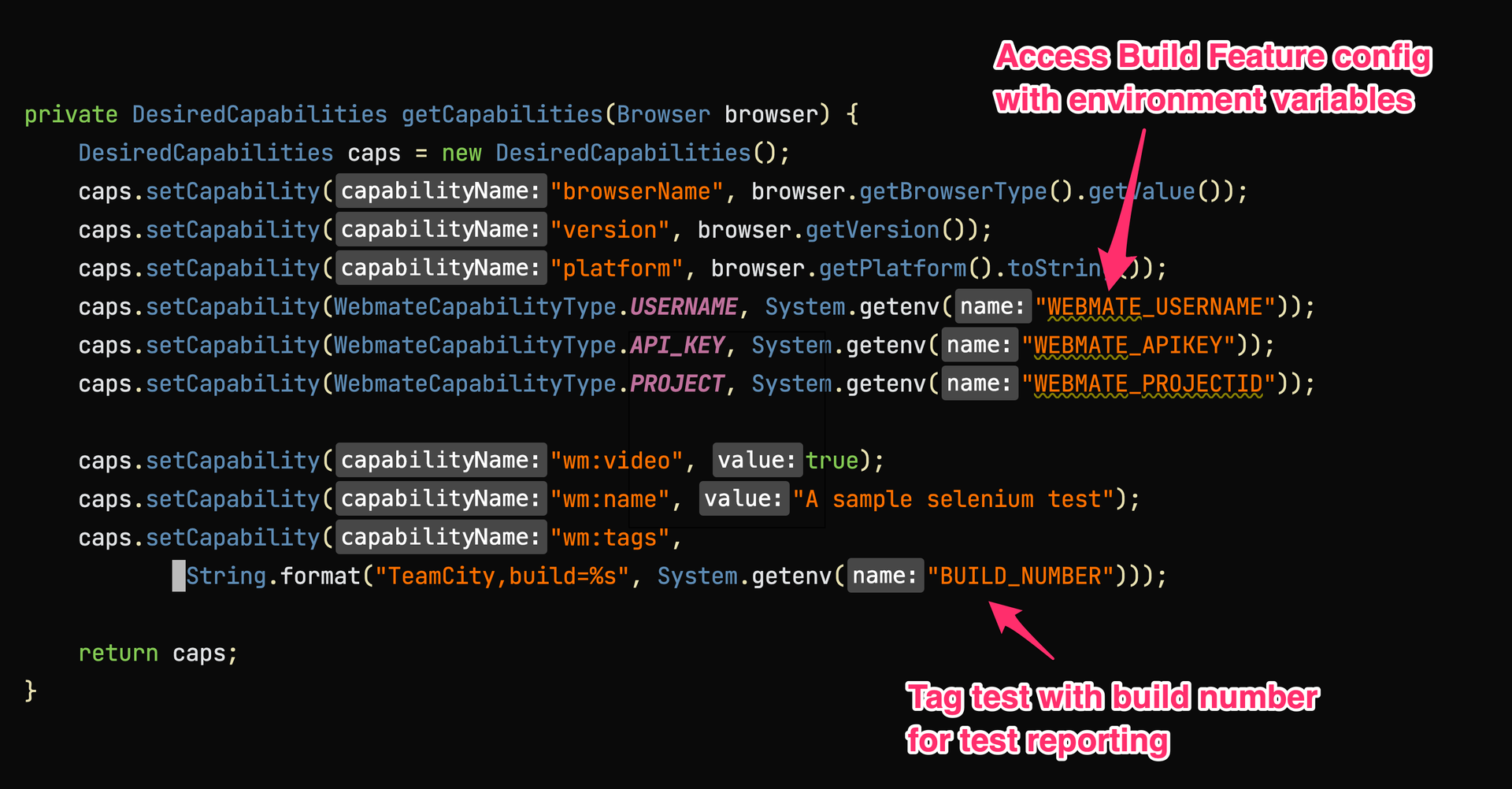
To utilize the configuration data from the webmate Build Feature, your test automation scripts must be modified at some places. The webmate plugin provides the configuration items as environment variables to your scripts.
At present, the following environment variables are being set:
- WEBMATE_USERNAME: Contains your configured webmate user name
- WEBMATE_APIKEY: Contains the API key
- WEBMATE_PROJECTID: Your configured webmate project ID
In addition, you can use any available TeamCity variable within your tests, e.g. to tag your selenium tests with the wm:tags special capability, which makes filtering your reports easier.
When you set the build tag to the BUILD_NUMBER environment variable, webmate will associate your Appium or Selenium test with your TeamCity build. With that you will be able to access the test result from the plugin (see section “Analyzing the Test Result” below).
Running Your Tests and Analyzing the Results
Now that your tests and TeamCity build configurations are prepared, you are able to run your test as usual, either triggered by a VCS event or by executing it manually.
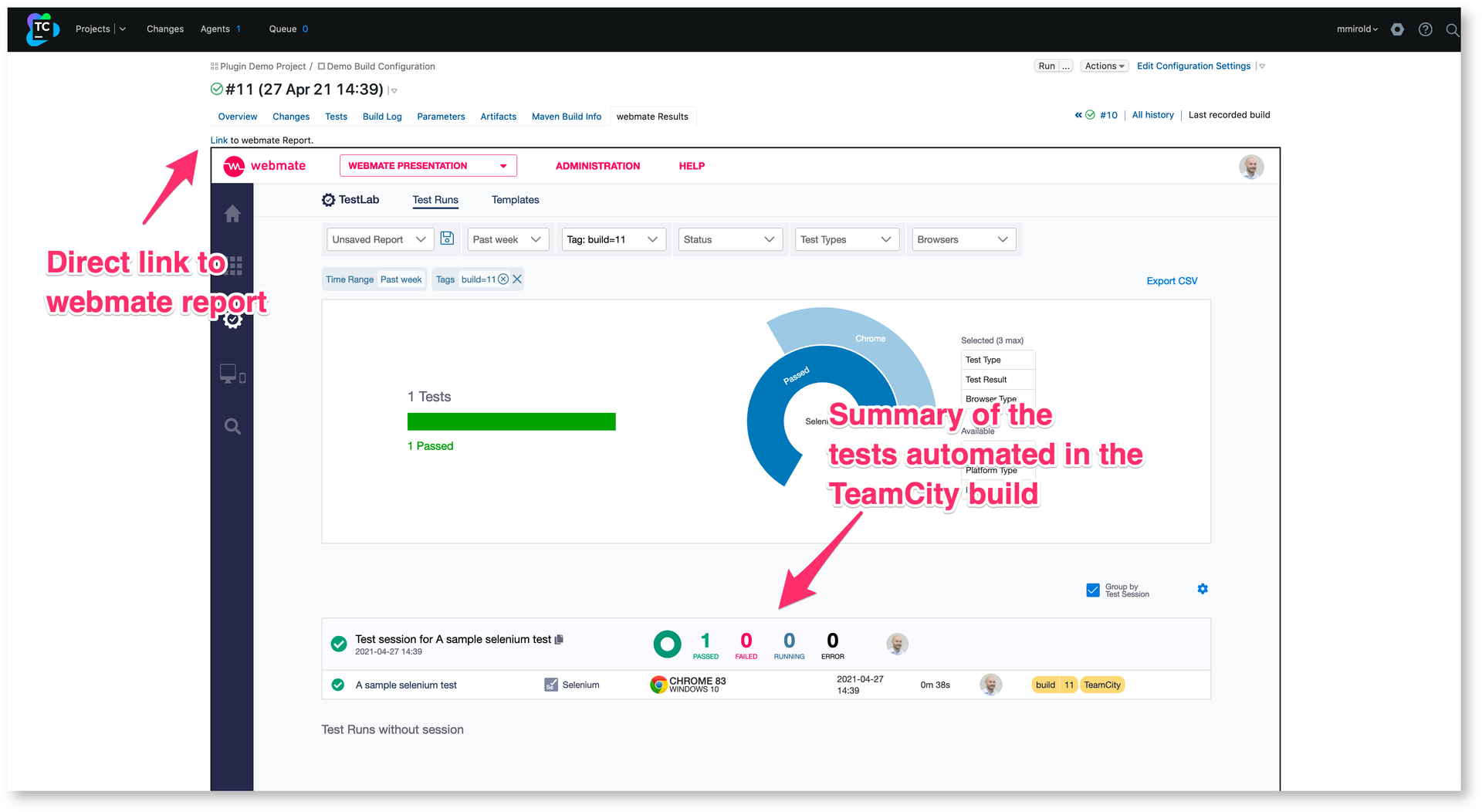
After the test has finished, your build will have an additional tab that gives you shorthand access to test artifacts in webmate, e.g. actions, screenshots, and videos, that are associated with this build. As your build may contain multiple Appium or Selenium test runs, all these test runs will be associated with the build.
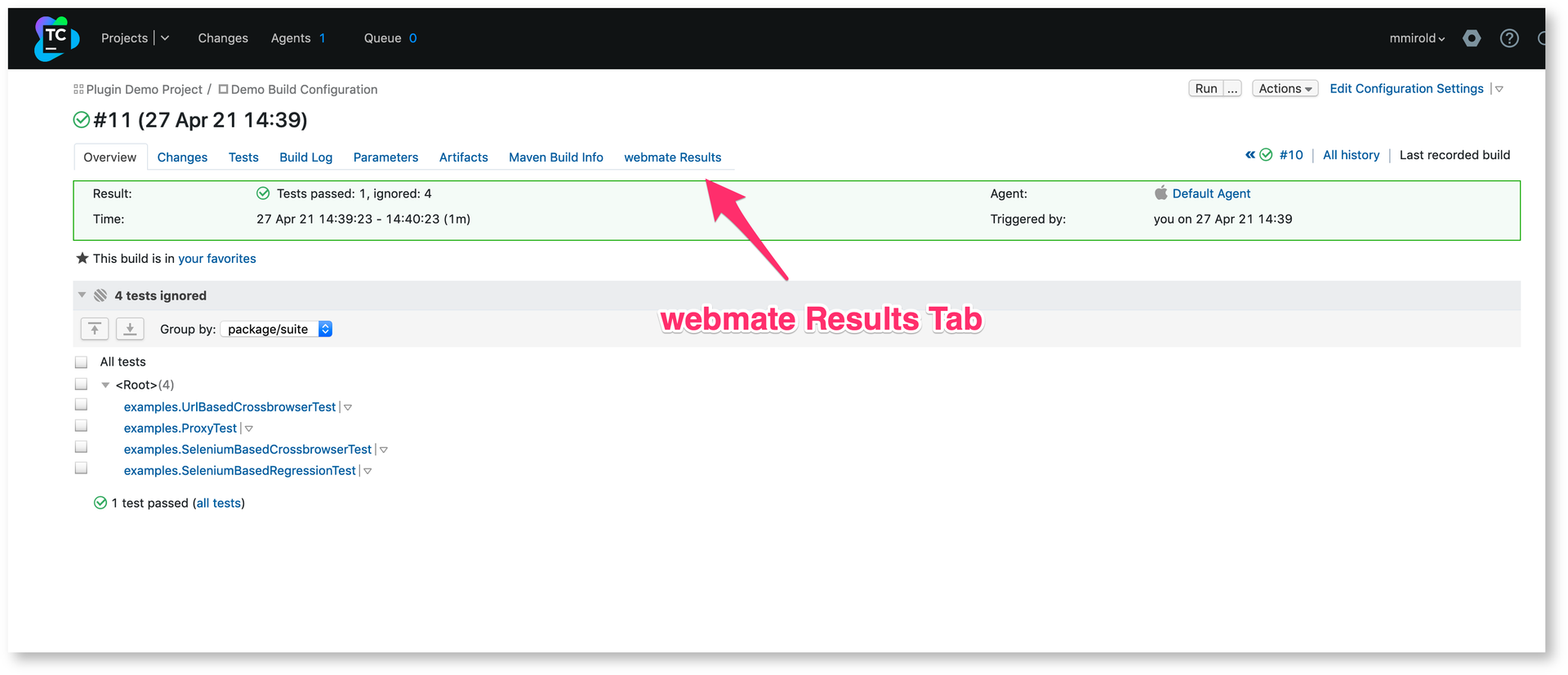
webmate Results are embedded in TeamCity. There is also a link that brings you directly to the test result overview in webmate.
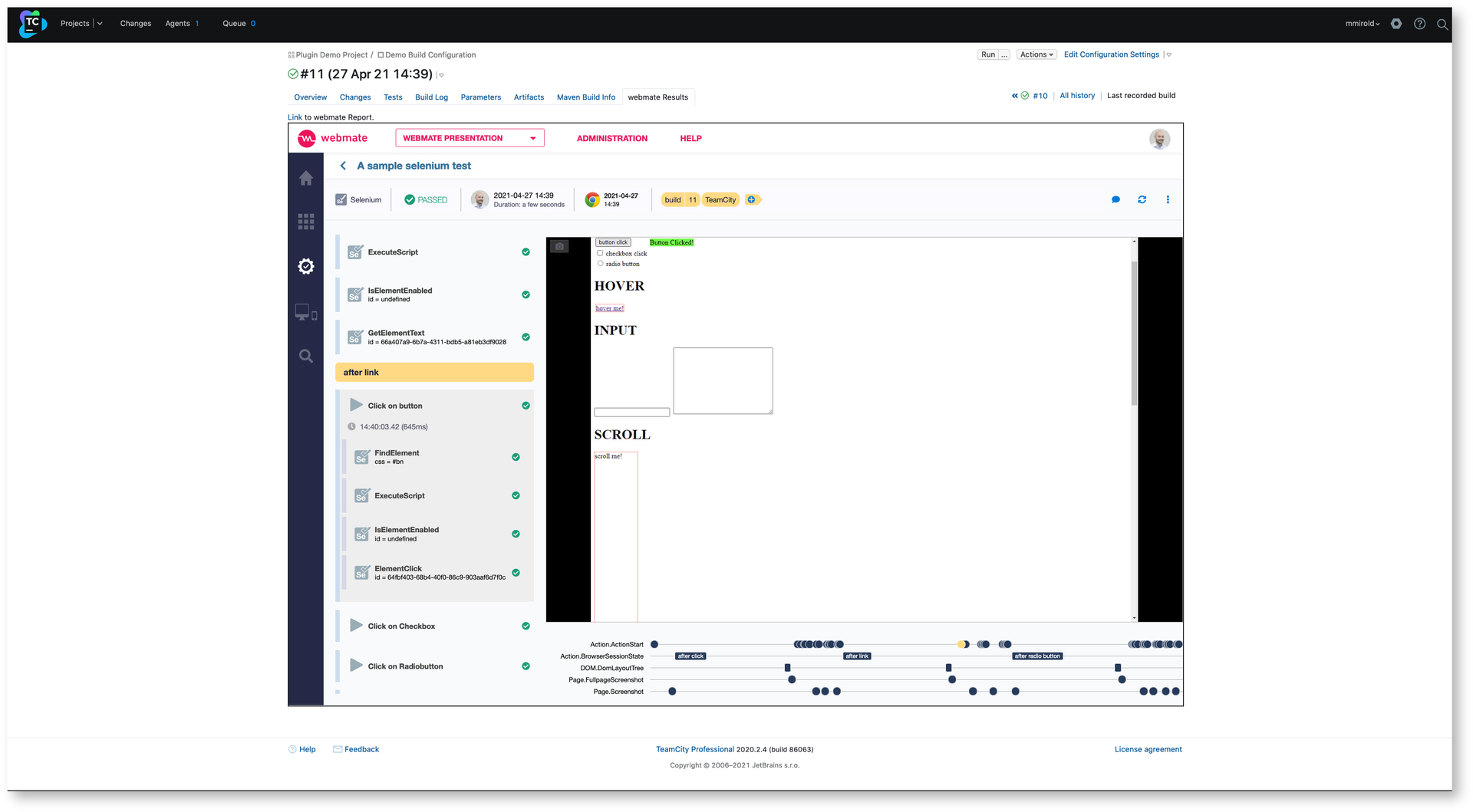
In the webmate view, you can navigate and use webmate as usual and also inspect the test run details of your Appium or Selenium test.
You can also check this video to review the whole process: