Unlock User Account
In some situations, the account of a user can be locked. For instance, this happens if a user tries to log in using invalid credentials too many times, or if a password lifetime is configured and the user fails to update the password in time. If an account is locked, administrator users can unlock the account again.
To unlock a user account, navigate to the account administration by clicking on Administration (1) and selecting Users & Roles (2).

The account administration displays a list of all user accounts together with the status of the account. Find the user you want to unlock (possibly by using the Search box on top of the user list. The account state is mentioned with a blue indicator and by hovering over it, you should be able to see the full state automatically disabled, followed by either password too old or too many failed authentications. To reactivate the user, click on the three dots (1) and Activate User (2).

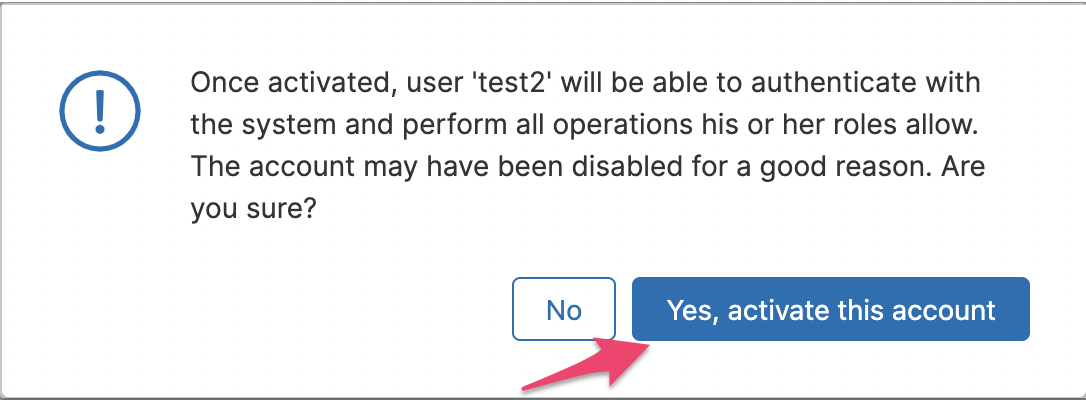
A confirmation dialog appears to verify the user’s intent. Confirm the change and the user’s status switches to Active again.